Documentation Menu
View Settings
Linkflare offers extensive customization options so you can view your bookmarks your way.
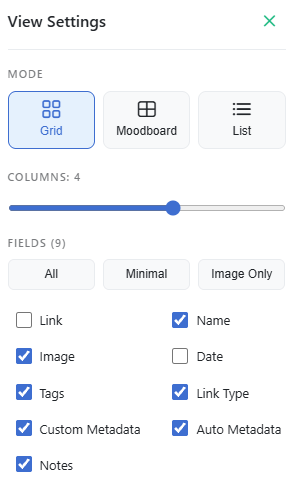
Layout Modes
Switch between different layouts depending on your content.
- Grid View: A balanced view showing the cover image and details. Great for general use.
- List View: A compact view. Perfect for scanning through hundreds of text-heavy bookmarks.
- Moodboard View: A Pinterest-style layout (masonry) that optimizes for image aspect ratios. Ideal for design inspiration and moodboards.
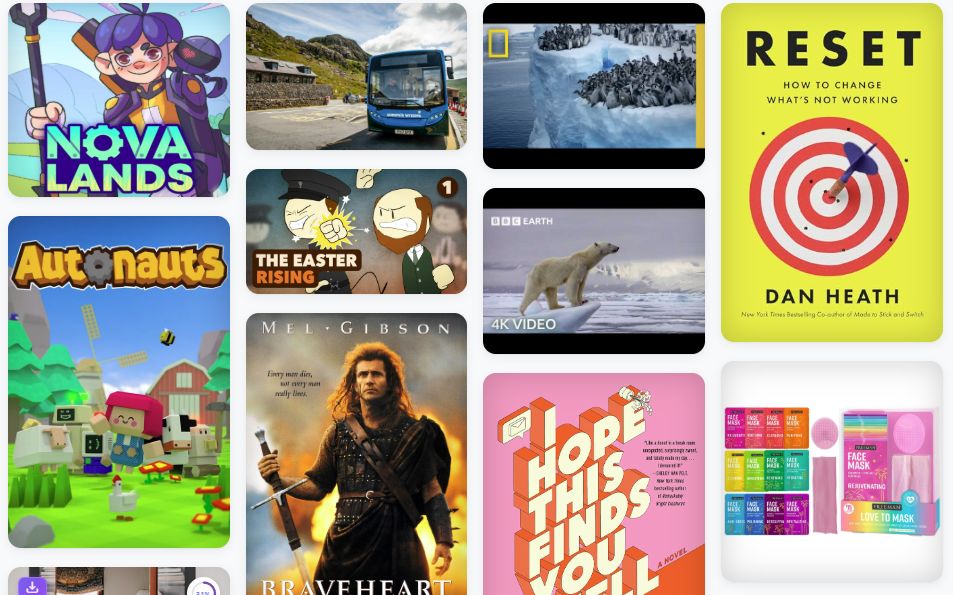
Customizing the Grid
You can adjust the density of the grid to fit your screen.
- Columns: Use the slider to change the number of columns.
Visible Fields
Control exactly what information is displayed on each card. You can toggle:
- Link
- Name
- Image
- Date
- Tags
- Link Type
- Custom Metadata
- Auto Metadata
- Notes
- Highlight Count (the small highlight badge in the corner of each card)
Show Collection Cards
When enabled, the Show Collection Cards toggle transforms your "All Bookmarks" view into a folder-style browsing experience. Instead of showing a flat list of every bookmark, Linkflare displays your top-level collections as visual cards with thumbnail previews.
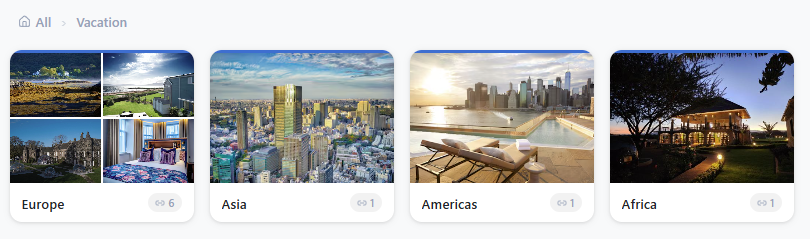
Each card shows:
- Thumbnail previews of the bookmarks inside the collection.
- The collection name and the number of links and sub-collections it contains.
Click a collection card to browse into it. A breadcrumb trail at the top (e.g. All › Vacation › Europe) lets you navigate back up the hierarchy. Bookmarks that aren't assigned to any collection appear below the cards.
This is especially useful if you organize your library into collections and prefer a visual, folder-like navigation instead of the flat list.
Swipe & Quick Actions (Mobile)
On a phone, every bookmark card responds to touch:
- Long-press a card (or tap its ⋮ button) to open the Quick actions sheet: Select, Move to collection, Edit tags, Pin to top, Move to Inbox / Archive, Remind me, rate it, Share, Open link, Edit… and Delete. Articles also offer Read article and See summary, videos Watch video, and vaulted links View Vault version.
- Swipe right or swipe left to run one action instantly. A colored panel shows the action while you pull; once you pull past about a third of the card it arms (the icon grows, and phones that support it give a small haptic tick) — release to run it. Let go earlier and the card just snaps back.
- Remind me comes with one-tap presets — Later today, Tomorrow, This weekend, Next week — or a date & time of your choice. See Reminders.
- Reversible actions show an Undo button for a few seconds. Delete always asks for confirmation.
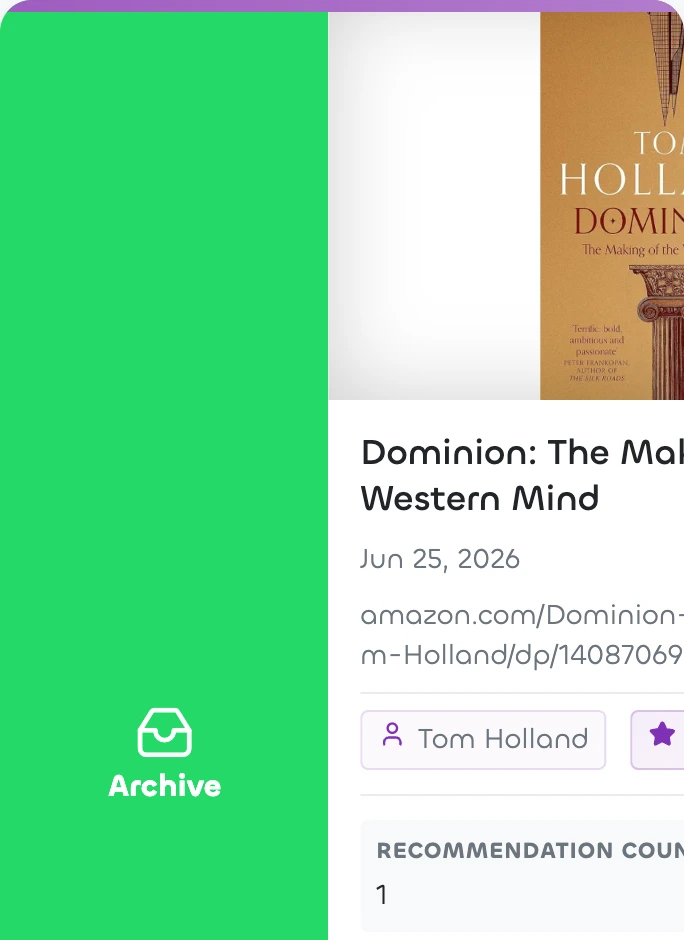
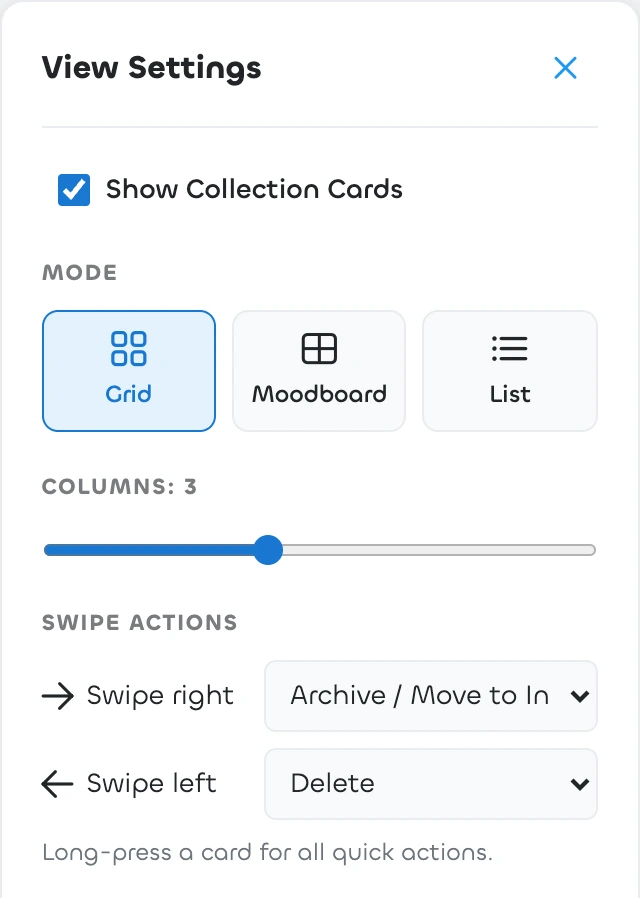
Customizing swipe actions
Open View Settings on your phone and look for Swipe actions (the section only appears on touch devices). For each direction you can choose:
- Archive / Move to Inbox — the default for swiping right. It archives a link that is in your Inbox and moves any other link into the Inbox.
- Delete — the default for swiping left (asks for confirmation).
- Pin / Unpin
- Remind me — opens the reminder presets directly.
- Quick actions menu — opens the full sheet.
- Nothing — turns that direction off.
Swipe settings are stored on the device, so your phone and your tablet can differ. On a desktop, right-click a card to get the same quick actions.
Light & Dark Mode
Linkflare supports both Light and Dark themes.
- Light: Best for bright environments.
- Dark: Easy on the eyes, perfect for night time.
You can toggle this in the User Menu (top right corner).