Documentation Menu
Knowledge Management
Linkflare isn't just for links — it's where your knowledge lives. Knowledge cards let you capture ideas, notes, and research in a hierarchical, richly formatted library, then commit them to long-term memory with a built-in spaced repetition system.
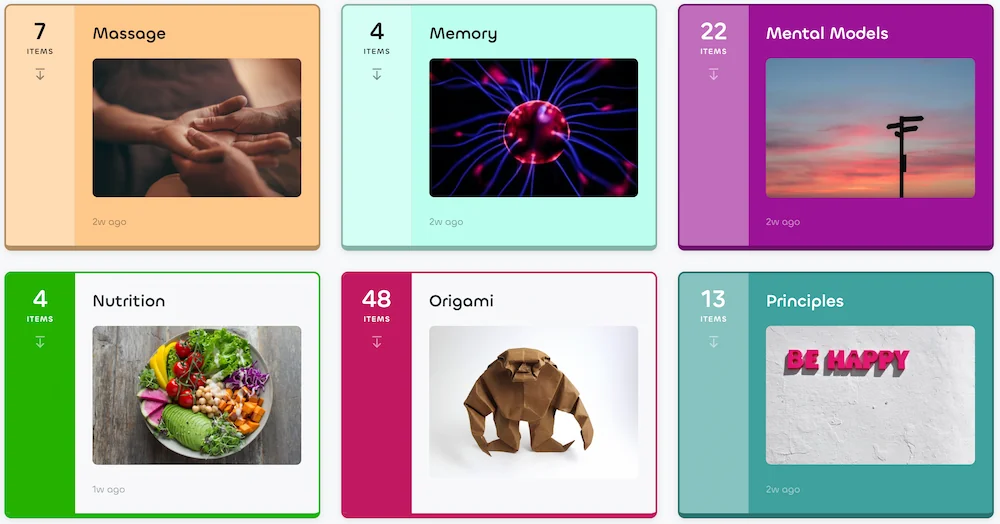
Knowledge Cards
A knowledge card is a single, self-contained idea. Unlike a freeform note app, each card is scoped to one concept, which makes it easy to link, review, and share. Cards support rich content:
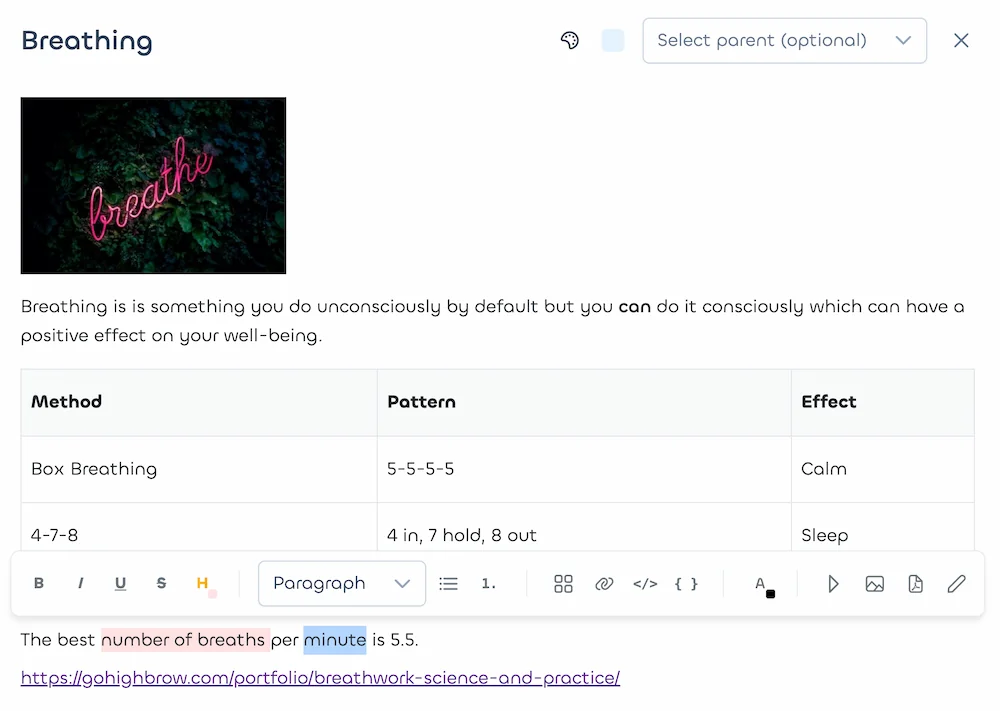
- Rich text: Headings, lists, checkboxes, code blocks, tables, quotes, and inline formatting.
- Images: Paste, drag, or upload — images are automatically rehosted so they stay available forever.
- Drawings: Sketch diagrams, annotations, and freehand notes directly inside a card.
- Videos: Embed YouTube clips and other video sources next to your notes.
- Links: Reference bookmarks and external URLs — a card can pull together everything you know about a topic.
Hierarchies & Tags
Organize your knowledge the way your brain does — from broad topics down to specific ideas.
- Hierarchies: Every card can have a parent. Nest cards as deep as you like — "Machine Learning → Neural Networks → Backpropagation" — and use breadcrumbs and the tree sidebar to move around.
- Tags: The same tag system used by bookmarks. A card can live under one parent but carry any number of tags, so you can slice your knowledge base across topics (e.g.
#to-review,#important,#book-notes). - Color coding: Pick from pastel presets or a custom color per card. Child cards can inherit the parent's color so whole branches share a visual identity.
Spaced Repetition & AI Flashcards
Saving knowledge isn't the same as remembering it. Linkflare uses the proven SM-2 spaced repetition algorithm (the same family that powers Anki) to resurface cards right before you would otherwise forget them — so the things you marked as worth remembering actually stick.
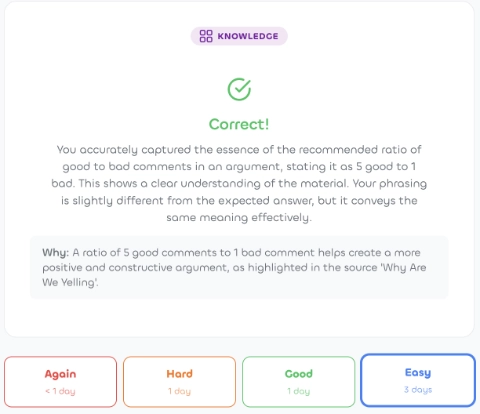
Mark any knowledge card as "memorizable" and it enters your review queue. Each review, you rate how well you remembered: Again, Hard, Good, or Easy. SM-2 schedules the next review accordingly — struggling cards come back sooner, well-known cards get pushed further out.
AI Flashcard Maker
Writing good questions is hard. Linkflare's AI flashcard maker reads the content of a knowledge card and generates a front/back question pair for you — turning a free-form note into a study-ready flashcard in one click. Edit, keep, or regenerate until it's right.

Review Anywhere
Due cards find you across three channels, so reviewing fits into the small gaps in your day:
- In the app: A dedicated Review page shows everything due, grouped by topic. Work through them at your own pace.
- In your new tab: The Linkflare browser extension surfaces due cards every time you open a new tab — turning idle moments into micro review sessions.
- By email: An optional email digest delivers due cards straight to your inbox when there's something to review (and skips the email when nothing is due).
Public Sharing
Any knowledge card — along with all of its children — can be made publicly shareable. Flip the share toggle and Linkflare gives you a clean, read-only public URL that anyone can visit, no account required. Perfect for sharing a study guide, a research summary, or a self-contained wiki on a topic you care about.
Here's an example of a publicly shared knowledge base: Mental Models for Better Thinking — a whole tree of cards, each one a thinking tool explained with a concrete example.
Linkflare also curates a growing public knowledge library — free, read-only topics on mental models, the human body, personal finance, cognitive biases, and more, open to everyone with no account required.
Embedding
Just like bookmark collections or saved searches, publicly shared knowledge can also be embedded like so:
Private Cards
Some knowledge belongs in your library but shouldn't show up at a glance — half-baked drafts, personal journal entries, gift research, anything you don't want to scan past every time you open Knowledge. Mark any card as Private and it disappears from the grid, search, and breadcrumb counts until you explicitly choose to see it.
The toggle lives at the bottom of the card dialog, right under Public Sharing:
- Private flag. Flip the Private card switch in the card dialog. The card — and every child underneath it — is hidden as long as your top-bar privacy switch is set to Private.
- Cascade to children. You only need to mark the top of a private branch. Every descendant inherits the privacy automatically, with a subtle lock icon so you can tell which cards are private versus inherited-private.
- Reveal on demand. Flip the top-bar switch to All to see your full library again — private cards reappear with a lock icon. Flip back to Private and they tuck away. The setting is per-device and persists across reloads.
- Mutually exclusive with public sharing. A card can't be both private and publicly shared at the same time. While Private is on, the Public Sharing toggle is disabled. If you turn on Private for a card that was already publicly shared, Linkflare warns you that the existing share URL stays accessible until you explicitly turn sharing off.
Private cards use the same global privacy switch as protected bookmark collections, so one click hides both kinds of content together.
Heads up: privacy is a local-view filter, not encryption. The review queue still pulls due cards from the whole library, and any public share URLs you created before marking the card private will keep working until you toggle sharing off.
Fulltext Search
Your knowledge base is only useful if you can find things in it. Linkflare indexes every card's title and content for fulltext search — search by keyword from the global search bar and jump straight to the matching card, no matter how deep in the hierarchy it lives.
View Settings
Just like bookmarks, the Knowledge view is fully customizable. Tailor the layout to the shape of your library:
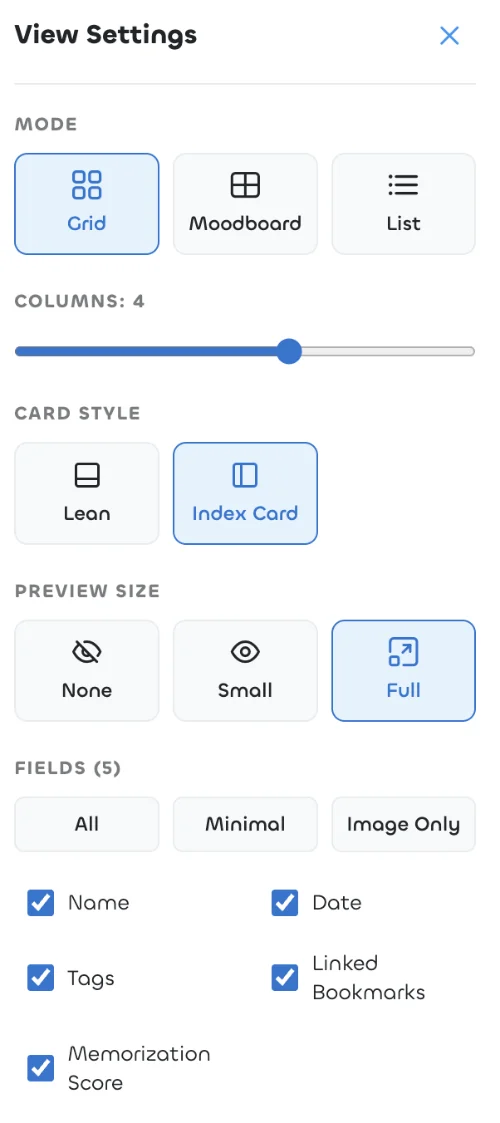
- Layout modes: Grid, list, or moodboard (masonry) — use whichever best matches the content you're browsing.
- Column count: Adjust density with the columns slider.
- Visible fields: Toggle image, tags, date, preview text, and more on each card.
- Sorting: Sort by recency, title, or custom order.
- Tag filters: Narrow the current level to cards matching one or more tags.
Getting Started
- Open Knowledge from the sidebar.
- Click Add card (or paste any text — Linkflare will offer to turn it into a card).
- Write or paste content, add a tag or two, and optionally pick a parent card.
- Toggle Memorize on any card you want to commit to long-term memory.
- Review due cards in the app, new tab, or by email — and watch your retention climb.