Documentation Menu
Highlights
Highlights turn Linkflare into a read-and-mark tool. Select text on any page, save it in one of six colors, attach an optional note, and find every passage you've ever marked from the Highlights page — all linked back to the source bookmark.

What you can do
- Highlight any text on any website with the browser extension.
- Pick from 6 colors to organize highlights by theme, importance, or mood.
- Attach notes to capture why a passage matters.
- Re-visit highlights in place — they re-render the next time you open the page.
- Browse all highlights across every page from one searchable list.
- Share as an image — turn any highlight into a polished social-share card in seconds.
- Export to Markdown — take everything with you in one Obsidian-friendly file, free on every plan.
- Auto-bookmark — highlighting a page that isn't saved yet creates the bookmark for you (without cluttering your inbox).
Getting started
Highlighting lives inside the Linkflare browser extension. If you haven't installed it yet, follow the Browser Extension guide first.
- Make sure you're signed into app.linkflare.io in the same browser. The extension picks up your API key automatically.
- Open any web page (an article, a Wikipedia entry, documentation, etc.).
- Select a passage of text — three or more words works best.
- A small toolbar appears just above the selection.
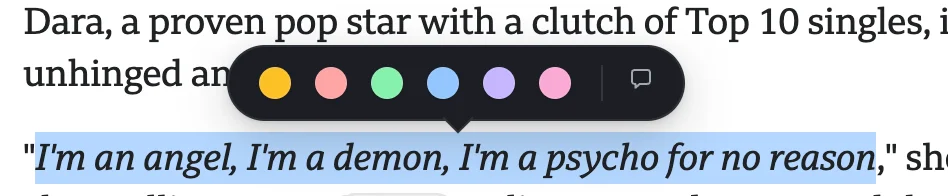
Creating a highlight
Quick highlight
Click the yellow Highlight button on the floating toolbar. The selected text gets a yellow background, the toolbar disappears, and the highlight is saved instantly to your Linkflare library.
Choose a color and add a note
For more control, click the ⋯ button on the toolbar. A popover opens with:
- Six color swatches — yellow, red, green, blue, purple, pink. Pick any one to apply.
- Note field — type a short note (a quote, a question, a reminder) to pin to the passage.
- Save button to commit, or close the popover to cancel.
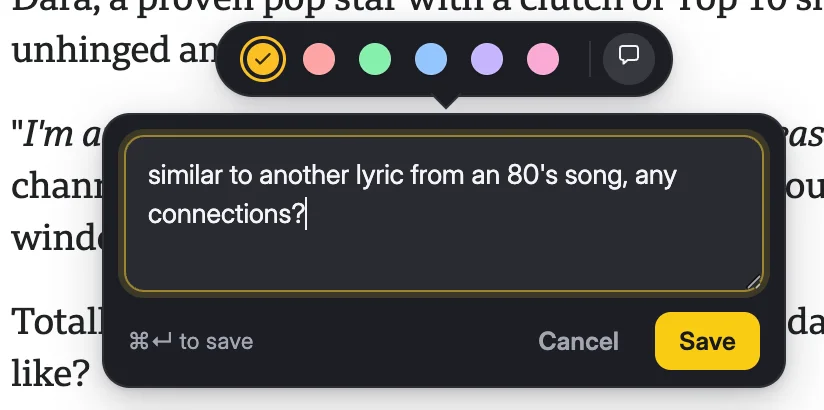
Color choices
The six available highlight colors:
Use color any way you like — by topic, by importance, by reading pass. Yellow is the default.
Working with highlights on the page
Persistence across reloads
Highlights re-render automatically the next time you open the page. Linkflare re-anchors them by surrounding text, so they survive most page changes. On pages that get heavily rewritten between visits, anchoring may fall back to the first matching occurrence.
Scroll-strip markers
Each highlight on the current page also shows up as a small colored dot in a thin strip on the right edge of the viewport. Click a dot to scroll directly to that highlight — useful for long articles with many marks.
Hover to view the note
Hover over a highlighted passage to see its note (if any) and a Delete button.
Deleting a highlight
There are two ways to remove a highlight:
- From the page: hover the highlight and click Delete. The colored background is removed and the original text is restored.
- From the Highlights page: click the trash icon on the highlight card and confirm.
SPA-aware
On sites that navigate without a full page reload (Reddit threads, Twitter, React/Vue apps), Linkflare detects the URL change and re-loads highlights for the new page automatically within about a second.
The highlights page
Open app.linkflare.io/highlights (or click the Highlighter icon in the side navigation) to see every highlight you've ever made.
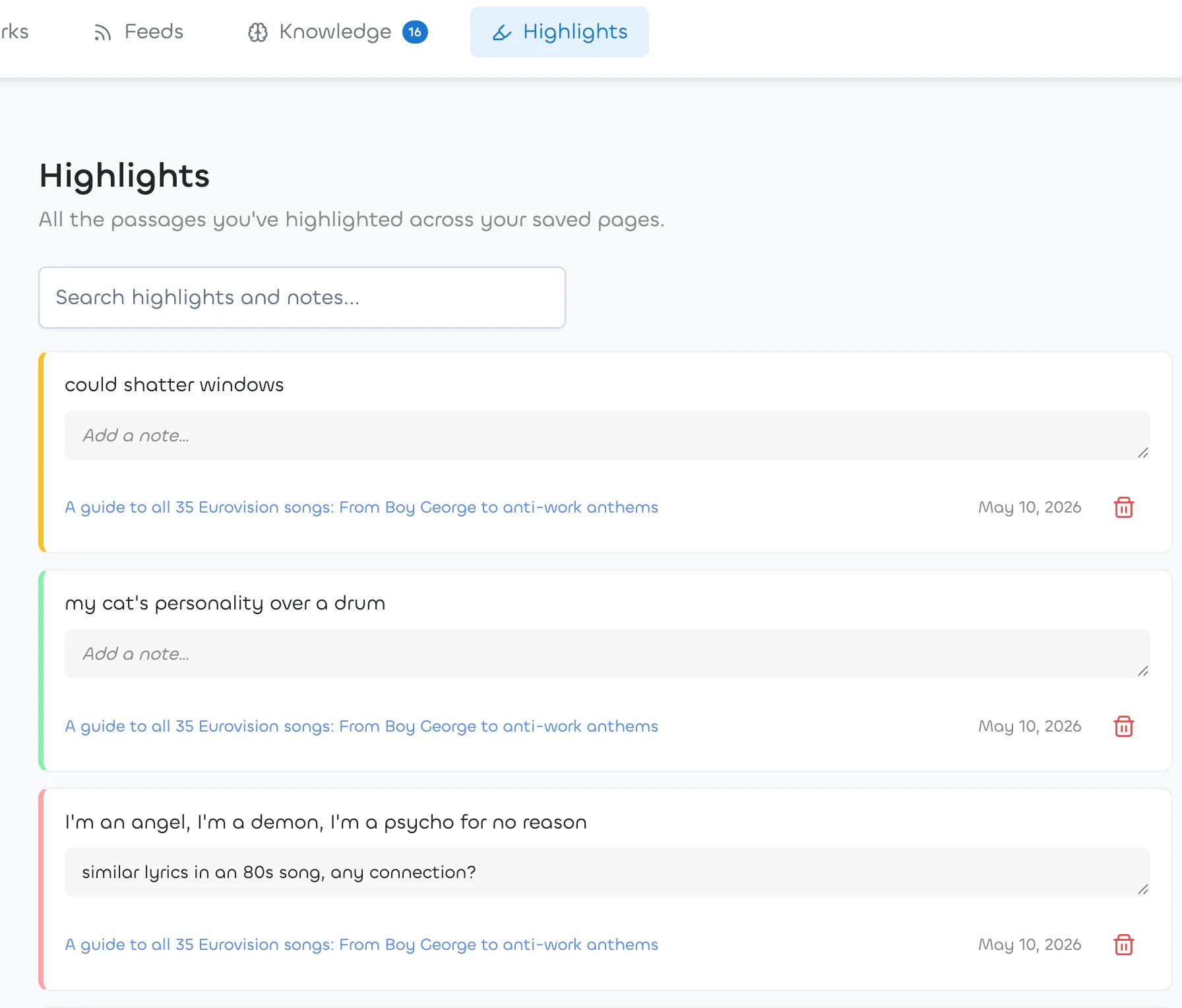
Card layout
Each row shows:
- A colored left border matching the highlight color.
- The highlighted passage.
- An editable note field — type and click outside to save; the change persists silently.
- The source bookmark title (click to open the original page) and the date you highlighted it.
- A trash icon to delete the highlight (a confirmation dialog appears first).
Search
Use the search bar at the top to find highlights by text or note content. Searches are debounced as you type, and Enter triggers an immediate search. Click the × icon inside the input to clear and reload the full list.
Pagination
Highlights load in batches of 50. Scroll or click Load more to fetch the next page. The total count is always visible.
Export your highlights to Markdown
Click Export in the toolbar to download your whole
highlight library as a single Markdown file
(linkflare-highlights-2026-08-28.md). It's free on every
plan — your highlights are yours, with no lock-in and no waiting for a
support ticket.
- Grouped by source page — one heading per page, linked back to the original URL.
- Every passage as a blockquote, with its note inside the quote and the date you highlighted it underneath.
- Obsidian-ready — drop the file straight into a vault, or open it in Logseq, Bear, iA Writer, VS Code, or anything else that reads Markdown.
- Respects your search — with a search active you export exactly the highlights you're looking at. Clear the search to export everything.
What the file looks like:
# Linkflare Highlights

Exported 2026-08-28 · 24 highlights · 7 pages

## [The Pragmatic Programmer](https://example.com/pragmatic)

> Care about your craft. Why spend your life developing software
> unless you care about doing it well?
>
> **Note:** the whole book in two sentences

*Highlighted 2026-08-20*
One export covers up to 5,000 highlights. If your library is larger, narrow the list with a search and export it in batches.
Share a highlight as an image
Every highlight on the Highlights page has a share icon next to the trash icon. Click it to open the full-screen Share Highlight editor — a live preview of your highlight as a polished social-share card with five distinct visual templates, five color palettes per template, and four aspect ratios sized for Instagram, X/Twitter, LinkedIn, and Stories.
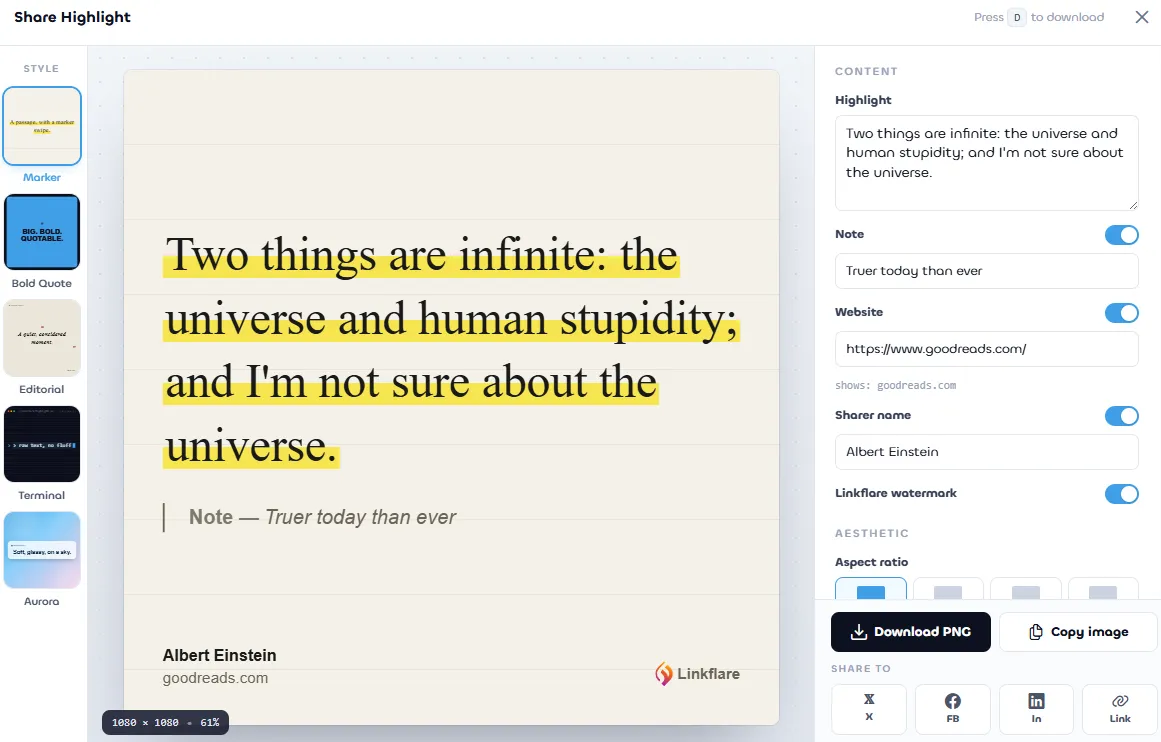
Five distinct templates
Pick the look that fits the platform — the moment, the audience, the tone:
- Marker — serif body text with a yellow highlighter swipe, like the real highlight on paper.
- Bold Quote — loud uppercase sans-serif on a colored card. Scroll-stopping on a feed.
- Editorial — magazine-style italic serif with hairline rules and small-caps metadata.
- Terminal — monospaced command-line vibe with a fake header bar, prompt, and cursor.
- Aurora — soft sky gradient with a glassmorphic card floating on top.



What you can tweak
- Content toggles — show or hide the note, the website domain, and your sharer name independently.
- Aspect ratio — 1:1 (Instagram feed), 4:5 (Instagram portrait), 9:16 (Stories/Reels/TikTok), or 16:9 (X / LinkedIn).
- Color theme — five curated palettes per template (Paper, Cream, Mint, Rose, Sky on Marker; Midnight, Sky, Noir, Plum, Lime on Bold Quote; and so on).
- Font size and padding — fine-tune for very long or very short passages.
- Terminal extras — the Terminal template's file-path and date in the header bar are editable per highlight.
Export and share
- Download PNG — saves a high-resolution PNG (e.g. 2160×2160 for a 1:1 card) ready to upload anywhere.
- Copy image — copies the PNG straight to your clipboard so you can paste it into a social composer, Slack, or a doc.
- Share to X, Facebook, LinkedIn — opens the platform's native composer pre-filled with the highlight quote and source URL.
- Copy link — copies the source article URL to your clipboard.
- Keyboard shortcut — press D while the editor is open to download.
Settings remembered per highlight
Every choice — template, palette, aspect ratio, toggles, font size, your sharer name — is remembered in your browser per highlight. Re-open the editor on the same highlight any time and it picks up exactly where you left off. Open a fresh highlight and you get sensible defaults that inherit your last-used template and sharer name.
Removing the Linkflare watermark
Free accounts always include a small Linkflare mark on the exported card so the brand stays visible when the image travels around social. Linkflare Pro can toggle the watermark off to ship a clean image with no branding.
Highlights on your bookmarks
Highlight count chip
On the Bookmarks page, every saved link with one or more highlights shows a small Highlighter chip with the count next to its title. Hover for an exact tooltip ("3 highlights on this page").
Don't want to see the chip? Open View Settings (sliders icon in the toolbar) and uncheck Highlight Count under Fields. The setting is remembered per section, and turning it off only hides the badge — your highlights themselves and the sidebar Has highlights filter are unaffected.

"Has highlights" filter
The Bookmarks sidebar has a Has highlights toggle (yellow Highlighter icon). Enable it to see only the bookmarks where you've highlighted at least one passage. Click again — or click Clear all filters — to reset.
Edit dialog
Open the edit dialog on any bookmark and you'll see a Highlights (N) section listing every highlight from that page. You can:
- Edit a note inline — blur the field to save.
- Delete a highlight straight from the dialog.
- See the chip count update on the underlying card without a reload.
Auto-bookmarking from a highlight
You don't need to save a page before highlighting it. The first highlight on a brand-new URL automatically creates a bookmark for you, using the page's title as the bookmark title.
These auto-created bookmarks skip the Inbox. The Inbox is reserved for pages you explicitly save to read or process later — pages you've already engaged with by highlighting don't belong there. You can still find them on the Bookmarks page and via search, and the highlight is always reachable from /highlights.
Auto-create still respects your account's bookmark and weekly limits. If you've hit a limit you'll see an inline error and the highlight will not be saved until the limit clears or your plan is upgraded.
What happens when you delete things
- Delete a highlight — it disappears everywhere (the page, /highlights, the bookmark's edit dialog) and the bookmark's chip count goes down by one.
- Delete a bookmark — every highlight from that page is removed too.
- Delete your account — all highlights are removed alongside the rest of your data, and the deletion summary shows how many highlights were cleaned up.
Privacy and limits
- Where they're stored: highlights are stored on Linkflare's servers and are tied to your account. They're never shared publicly unless you choose to share the parent bookmark.
- What we store: the highlighted text, the note (if any), the URL and title of the page, the color you picked, an approximate scroll position, and small text fragments around the selection used to re-anchor the highlight on future visits.
- Where it doesn't run: the content script is excluded from Linkflare's own domains so it doesn't double up on the web app itself.
- Re-anchor accuracy: on heavily dynamic pages (server-rendered HTML replaced by JavaScript), the re-anchor may fall back to the first occurrence of the saved text. This is rare for typical articles.
Troubleshooting
The toolbar doesn't appear when I select text
- Make sure the Linkflare extension is installed and enabled (install instructions).
- You need to be signed into app.linkflare.io in the same browser at least once so the extension can pick up your API key.
- Some sites lock down text selection. Try selecting in a different paragraph or page section.
- Selections shorter than three words are intentionally ignored to avoid accidental highlights.
My highlight didn't reappear when I came back
- Check that you're signed in — without a session the extension can't load your highlights.
- The page may have changed structure significantly since you highlighted it. Linkflare uses three layers of re-anchoring; if all fail, the highlight remains in your /highlights page but no longer renders on the source page.
- Hard refresh (Ctrl/Cmd+Shift+R) the page to clear any stale extension state.
I see a permission prompt about "Read and change all your data"
This permission is required so the content script can read selected text and inject highlight markup on every site. Without it, in-page highlighting can't work. The script never sends the page content to Linkflare — only the text you choose to highlight, plus a few characters of surrounding context used for re-anchoring.
Next steps
- Install the browser extension if you haven't yet.
- Manage your bookmarks and inbox.
- Promote highlights into Knowledge Management for long-term recall and review.