Documentation Menu
Meal Planning
Make great use of your recipe links and plan your meals.
- Create a Collection: Add a few recipes you like to make.
- or Filter by Recipe Type: The meal plan becomes available if all filtered bookmarks are recipes.
- Press Open Meal Plan
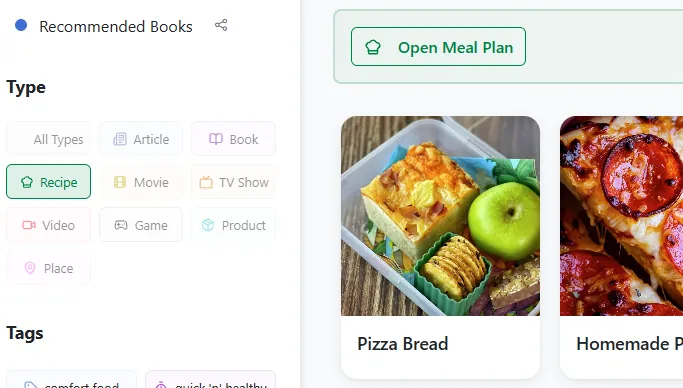
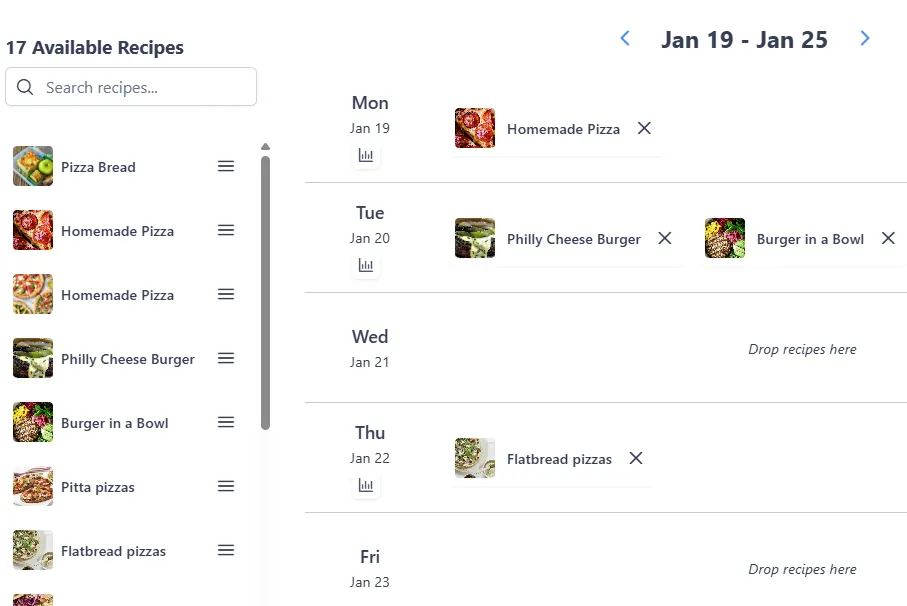
You can now add recipes to the plan. On desktop, drag and drop a recipe from your bookmarks onto a day, or click it to select it. On a phone, tap the + button on a day: a sheet opens where you can search your recipes or create a new one.
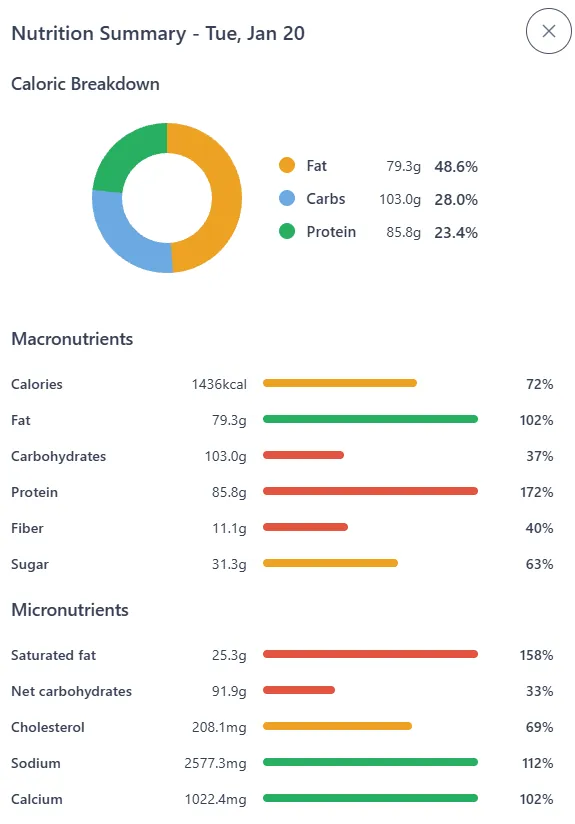
Underneath the date, you see a small chart symbol. Press that to get a daily summary of all the macro and micro nutrients. This way you can check whether your plan is solid and healthy.
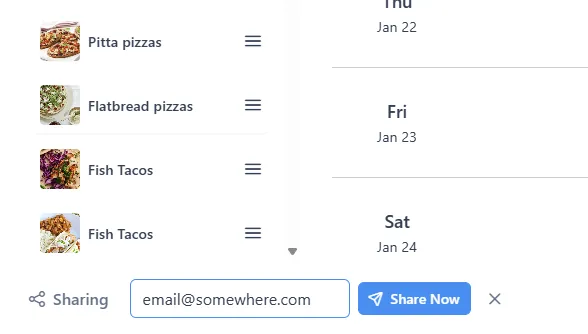
There is no save button: the plan saves itself every time you add or remove a recipe. Once you're happy with it, share it with another Linkflare user. Type the email they signed up with in the share field and they will get access to the exact same meal plan.
Grocery List
Once the week has recipes on it, press Grocery list next to the week. Linkflare takes every recipe planned for those seven days, adds each ingredient up across them, and sorts the result into supermarket aisles. Every line names the recipes behind it, so you can always see where a number came from.
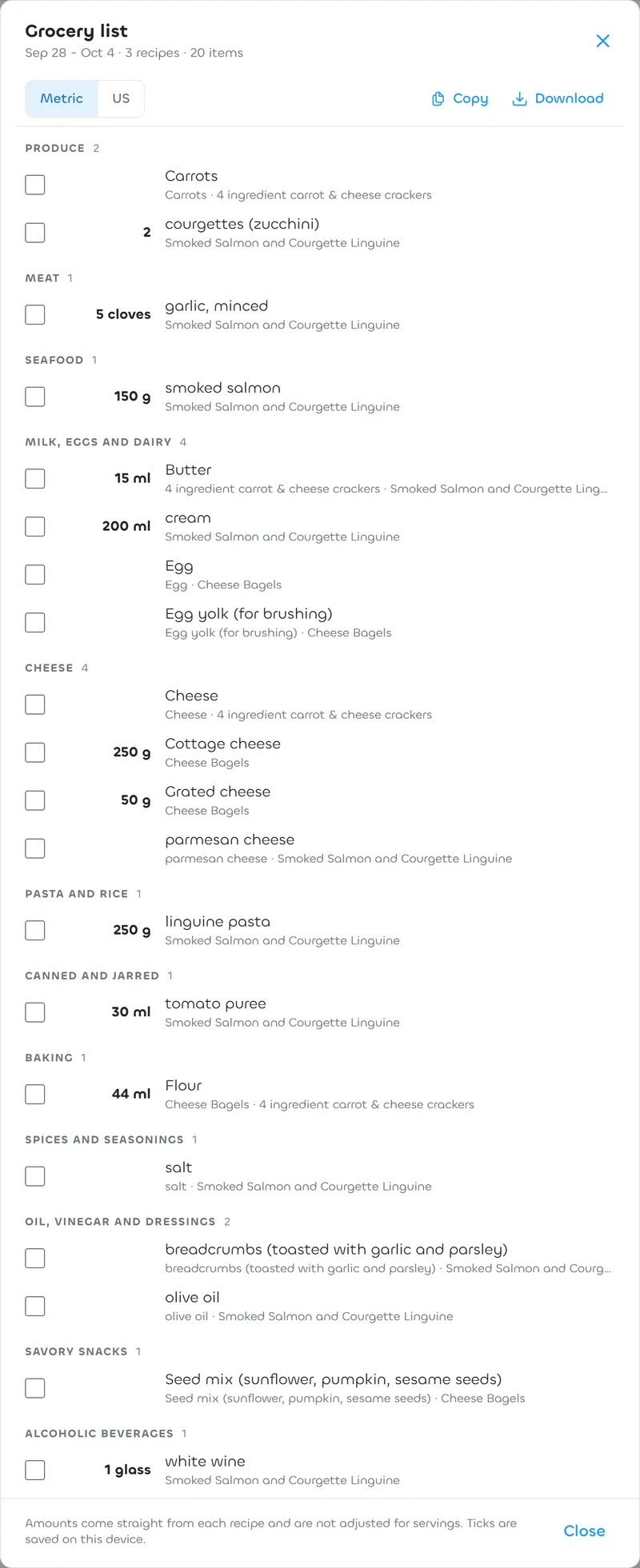
Switch between metric and US units, tick things off as you shop, and use Copy or Download to move the list into whatever app you already shop with. On a phone the same list opens as a sheet from the button next to Share.
Two things worth knowing. Amounts come straight from each recipe and are not scaled to the number of servings you are cooking. Ingredients a recipe never put a number on, like salt to taste, still appear on the list without one, because dropping them quietly or inventing a quantity would both be worse. Your ticks are saved on the device you are shopping with.