Documentation Menu
Bookmarks & Inbox
Linkflare is designed to handle all types of content, from simple links to movies, books, and recipes.
Creating Bookmarks
There are several ways to add content to Linkflare:
- Browser Extension: The easiest way. Click the Linkflare button in your browser toolbar.
- Mobile Share Sheet: Share directly from apps like YouTube or Safari on iOS and Android.
- Paste URL: In the Linkflare app, simply paste a URL (Ctrl + V / Cmd + V) to open the add dialog.
- Add Button: Click the "+" button in the app interface.
Inbox vs. Bookmarks
Linkflare distinguishes between things you want to consume later and things you want to keep.
Inbox
The Inbox is for "Read Later", "Watch Later", "Listen Later", or "Play Later" items. It's a temporary holding place for content you want to process. Use it for:
- Articles you want to read this weekend.
- YouTube videos to watch later.
- Movies recommended by a friend.
- Podcast episodes you're intrigued by.
- Games to play the next chance you get.
Bookmarks
Once you've consumed content or if you know you want to keep it for reference, it lives in your permanent library (Bookmarks). Use it for:
- Reference material and documentation.
- Favorite recipes.
- Favorite movies, TV shows, or games you rated.
- Books you've read and want to remember.
- Design inspiration.
Bookmark Types
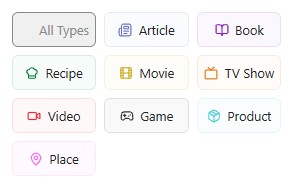
Linkflare automatically detects the type of content you save and enriches it with metadata. We support Articles, Videos, Books, Movies, TV Shows, Games, Recipes, Products, and Places.
Rating
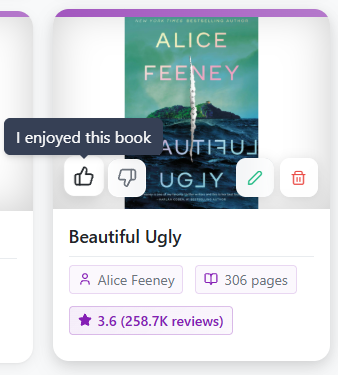
You can rate any bookmark (Thumbs Up / Thumbs Down) to remember what you liked. This is especially useful for movies, books, and recipes.
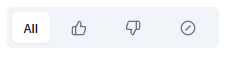
You can then later simply filter by positively, negatively or unrated bookmarks.
Time Commitments
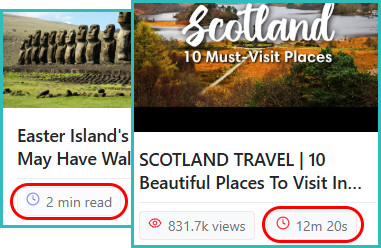
For videos and articles, we display the Watch Time or Read Time so you know how much time to set aside.
Bulk Operations
Need to organize dozens of bookmarks at once? Linkflare supports bulk operations so you don't have to edit links one by one.
Entering Selection Mode
Click the checkbox icon in the toolbar to enter selection mode. You can then click individual bookmarks to select or deselect them. Use the Select All / Deselect All button to toggle the entire visible list at once. A counter shows how many links are currently selected.
Bulk Move
Move all selected bookmarks to a different collection in one go. Click Move in the selection toolbar, pick the target collection from the dropdown, and confirm. All selected links will be reassigned instantly.
Bulk Tag
Add tags to many bookmarks at once. Click Tag, type or select the tags you want to apply, and confirm. The tags will be added to every selected bookmark without removing their existing tags.
Bulk Delete
Remove multiple bookmarks in one action. Click Delete and confirm the prompt. This permanently deletes all selected bookmarks.
Tip: Combine filters (e.g. a specific collection or tag) with Select All for powerful batch operations on a targeted set of bookmarks.
Custom Metadata & Notes
You can add your own fields to any bookmark. Need to track "Calories" for a recipe or "Lent to" for a book? Just add a custom field.
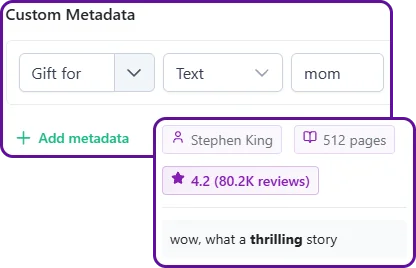
You can also add personal notes with rich text formatting to any bookmark.