Documentation Menu
View Settings
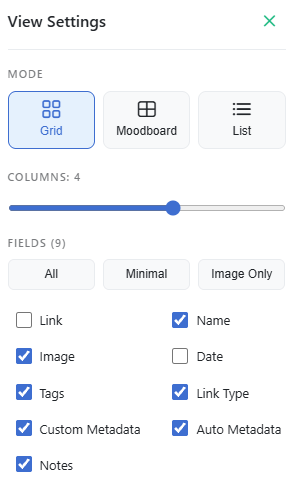
Linkflare offers extensive customization options so you can view your bookmarks your way.
Layout Modes
Switch between different layouts depending on your content.
- Grid View: A balanced view showing the cover image and details. Great for general use.
- List View: A compact view. Perfect for scanning through hundreds of text-heavy bookmarks.
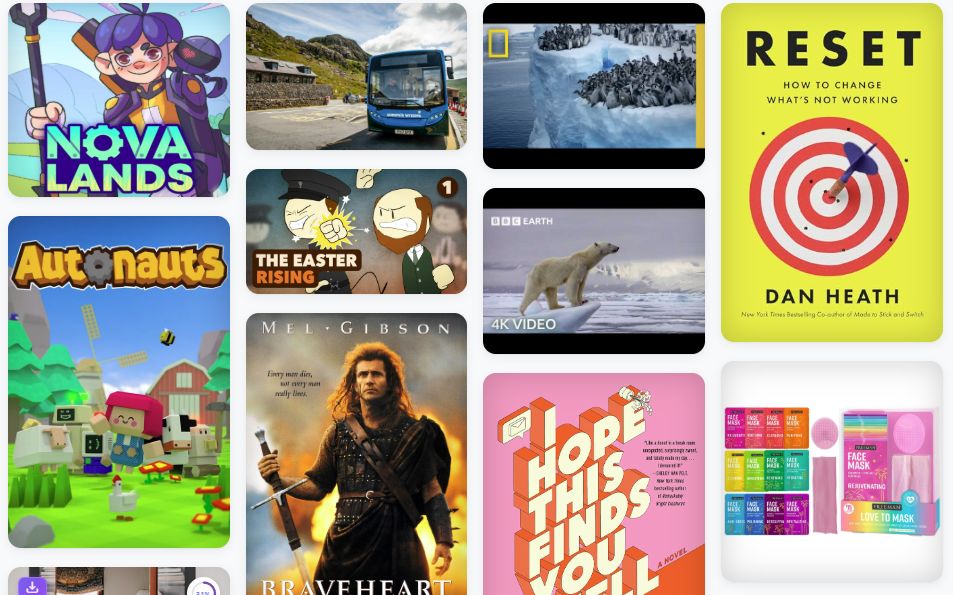
- Moodboard View: A Pinterest-style layout (masonry) that optimizes for image aspect ratios. Ideal for design inspiration and moodboards.
Customizing the Grid
You can adjust the density of the grid to fit your screen.
- Columns: Use the slider to change the number of columns.
Visible Fields
Control exactly what information is displayed on each card. You can toggle:
- Link
- Name
- Image
- Date
- Tags
- Link Type
- Custom Metadata
- Auto Metadata
- Notes
Show Collection Cards
When enabled, the Show Collection Cards toggle transforms your "All Bookmarks" view into a folder-style browsing experience. Instead of showing a flat list of every bookmark, Linkflare displays your top-level collections as visual cards with thumbnail previews.
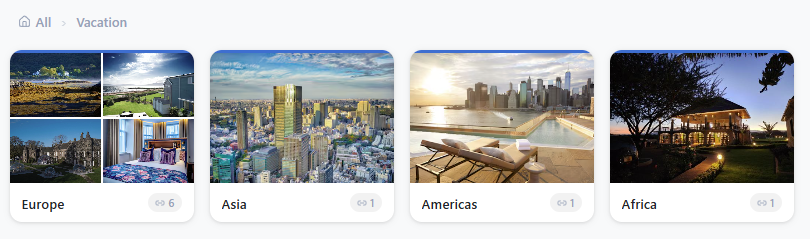
Each card shows:
- Thumbnail previews of the bookmarks inside the collection.
- The collection name and the number of links and sub-collections it contains.
Click a collection card to browse into it. A breadcrumb trail at the top (e.g. All › Vacation › Europe) lets you navigate back up the hierarchy. Bookmarks that aren't assigned to any collection appear below the cards.
This is especially useful if you organize your library into collections and prefer a visual, folder-like navigation instead of the flat list.
Light & Dark Mode
Linkflare supports both Light and Dark themes.
- Light: Best for bright environments.
- Dark: Easy on the eyes, perfect for night time.
You can toggle this in the User Menu (top right corner).