Documentation Menu
Sharing & Collaborating
Linkflare lets you share your curated lists with the world or invite specific people to build collections together. Public sharing gives anyone a read-only view via a link; collaboration lets other Linkflare users actively work inside your collections.
Public Sharing
Any collection or saved search can be made publicly accessible via a shareable link. Viewers do not need a Linkflare account — the link opens a read-only page.
Sharing a Collection
- Open the collection you want to share.
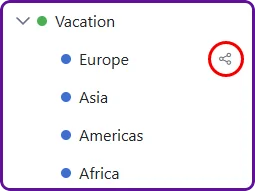
- Click the Share button in the collection header.
- Toggle Public Access to ON.
- A URL slug is auto-generated from the collection name. You can edit it if you prefer a different slug.
- Optionally add a description and a password to protect the page.
- Copy the link and send it to anyone.
Example — Birthday Wishlist: Create a "Wishlist" collection, add products from Amazon, Steam, and other stores, then share the link with friends so they know exactly what to get you.
Sharing a Saved Search
Saved Searches can also be shared as a public link. Because a saved search is dynamic, the page your recipients see will always reflect your latest additions.
Example — Book Recommendations: Create a Saved Search for Type: Book + Tag: Recommended + Rating: Thumbs Up. Share the link, and your friends will automatically see every new book you recommend going forward.
Pretty URLs
Every Linkflare user gets a username (auto-generated on sign-up, editable in your account settings). When you share a collection or saved search, the public page gets a clean, human-readable URL:
https://app.linkflare.io/@yourusername/my-collection-slug
The slug is auto-generated from the collection name when you toggle sharing on. You can customise it in the share dialog. If someone else with the same username already uses a particular slug, Linkflare automatically appends -2, -3, etc.
Public Profile Page
Your profile page at https://app.linkflare.io/@yourusername shows all your public collections in one place. It’s a great landing page to share on social media bios or personal websites. Each collection card links directly to its public page.
SEO & Social Previews
Public pages are fully optimised for search engines and social media:
- Open Graph & Twitter Card tags — when you paste a public page link on Twitter, Facebook, LinkedIn, Slack, or Discord, it renders a rich preview card with the collection title, description, and thumbnail.
- JSON-LD structured data — Google and AI assistants (Perplexity, ChatGPT, etc.) can understand and cite your collections.
- Semantic HTML — public pages use
<main>,<article>,<nav>, and<footer>elements for accessibility and crawlability. - Canonical URLs — duplicate-content issues are avoided by pointing to the pretty
/@username/slugform.
Social Share Buttons
Every public page includes a share menu in the header. Viewers (and you) can share the page directly to:
- Twitter / X
- Copy the page link to the clipboard
- Copy the RSS feed URL (see below)
RSS Feeds
Every public collection and saved search automatically gets an RSS feed. This lets anyone follow your curated list in their favourite RSS reader (Feedly, Inoreader, NetNewsWire, etc.) and get notified whenever you add new bookmarks.
The feed URL follows this pattern:
https://app.linkflare.io/rss/collection/<shareId>
https://app.linkflare.io/rss/search/<shareId>
You can copy the RSS URL directly from the share menu on the public page.
Shareable View Customisation
Viewers can search, sort, and change the view mode on any public page. These settings are reflected in the URL as query parameters (?search=, ?sort=, ?view=, ?columns=), so you can share a specific filtered or sorted view by simply copying the URL.
Password Protection
When you enter a password in the share dialog, visitors must type it before they can view the page. Useful for sharing sensitive wishlists or private research with a select group.
Collaboration
Public sharing is one-way — viewers can look but not touch. Collaboration goes further: you invite other Linkflare users into a collection so they can browse, add, or fully manage bookmarks alongside you.
Enabling Collaboration
Collaboration is toggled on a per-collection basis when you create or edit a collection.
- Open the Add Collection or Edit Collection dialog.
- Toggle Collaborate to ON.
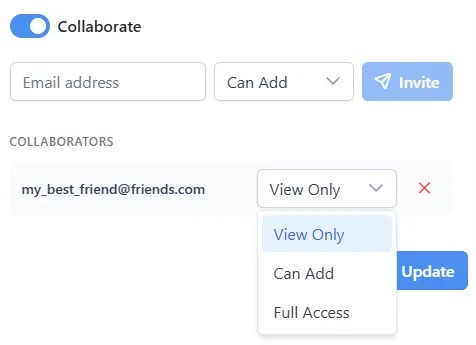
- An invitation section appears. Enter the email address of the person you want to invite.
- Choose their permission level (View, Add, or Full — see below).
- Click Invite. They will receive an email with a link to accept the invitation.
Once collaboration is enabled, a small collaboration icon appears next to the collection name in the sidebar so you can tell at a glance which collections have collaborators.
Permission Levels
When you invite a collaborator you choose one of three permission levels:
| Level | Browse | Add bookmarks | Edit bookmarks | Delete bookmarks |
|---|---|---|---|---|
| View | ✓ | — | — | — |
| Add | ✓ | ✓ | — | — |
| Full | ✓ | ✓ | ✓ | ✓ |
- View — the collaborator can browse the collection and all its bookmarks but cannot add, edit, or delete anything. Ideal for people who just need to see the list.
- Add — the collaborator can browse and add new bookmarks to the collection but cannot edit or remove existing ones. Great when you want others to contribute without risking changes to what's already there.
- Full — the collaborator can browse, add, edit, and delete bookmarks freely. Use this for close collaborators you trust to manage the collection alongside you.
The collection owner always retains full control and is the only one who can change collection settings, manage collaborators, or delete the collection itself.
Child Collections
When you enable collaboration on a collection, all child collections automatically inherit the same collaborators and permission levels. You don't need to invite people to each sub-collection separately — adding someone to the parent gives them the same access to every collection nested beneath it.
For example, if you share "Vacation" with your partner, they will also have access to "Vacation → Scotland", "Vacation → Italy", and any other child collections you create later.
Accepting an Invitation
When someone invites you to collaborate, two things happen:
- You receive an email with a link. Clicking it opens Linkflare and lets you accept (or decline) directly.
- Inside the app, a notification bell in the header shows a badge with the number of pending invitations. Open it, review the invitation, and accept or decline.
Once accepted, the shared collection appears in a Shared with me section in your sidebar. You can now browse and work with it according to the permission level the owner granted you.
Managing Collaborators
As the collection owner you can manage collaboration at any time:
- Change a collaborator's role — open Edit Collection, find the collaborator in the list, and switch their permission level.
- Remove a collaborator — click the remove button next to their name. Their access is revoked immediately.
- Revoke a pending invitation — if the person hasn't accepted yet, you can cancel the invitation from the same panel.
- Leave a collection — as a collaborator, you can leave at any time from the collection's context menu, which removes it from your sidebar.
Examples
Collaborative Trip Planning
You and your partner are planning a trip to Scotland. Here's how collaboration helps:
- Create a "Vacation" collection and a child collection "Scotland" inside it.
- Edit the "Vacation" collection, toggle Collaborate on, and invite your partner with Add permission.
- Your partner accepts the invitation. "Vacation" (and "Scotland" automatically) appear in their Shared with me sidebar.
- Both of you start bookmarking hotels, restaurants, and activities into "Scotland." Each person saves from their own device.
- Switch to the Place type filter and enable Map view — all saved locations appear on a single map, regardless of who added them.
- Before the trip, you create a child collection "Vacation → Scotland → Edinburgh." Your partner gets access automatically — no re-invite needed.
Because your partner has Add permission, they can freely add new bookmarks but can't accidentally edit or delete the existing ones you've already curated.
Shared Reading List
A university study group wants to pool their research reading:
- The group leader creates a "Study Group Reading" collection.
- They toggle Collaborate on and invite three classmates — two with Full access and one auditing student with View access.
- The two full-access classmates can add new articles, edit titles or tags for clarity, and remove duplicates.
- The auditing student can browse everything and read articles in Reader Mode, but the add/edit/delete buttons are hidden for them.
- When the leader adds a child collection "Study Group Reading → Exam Prep", all four collaborators automatically see it with the same permissions.
Everyone's additions appear in the same collection. The leader keeps full control — they can promote the auditor to Add if they want them to contribute, or remove someone if the group changes.
Shared Research Collection
A small design team is gathering inspiration for a rebrand project:
- The lead designer creates a "Rebrand Research" collection with child collections for "Color Palettes", "Typography", and "Competitor Analysis".
- They toggle Collaborate on the parent collection and invite three teammates with Add permission plus the project manager with View permission.
- All child collections are automatically shared — each team member can save bookmarks into whichever sub-collection fits.
- The project manager can review the growing collection and filter by tags or types, but the UI hides add/edit/delete actions so the research stays untouched.
- If a team member leaves the project, the lead designer removes them from the collaborators list. Access is revoked immediately across the parent and all child collections.
- Later, the lead adds a new child collection "Rebrand Research → Motion Design." All existing collaborators get access automatically.
The collaboration icon on the sidebar makes it easy to see which collections are team-shared vs. personal.