Documentation Menu
Importing Data
Moving to Linkflare is easy. We support importing your bookmarks and data from all major browsers and bookmarking services — including Pocket, Instapaper, Goodreads, and YouTube.
To open the import dialog, click your avatar in the top-right corner of the app and choose an import option from the menu. After selecting a source, a step-by-step guide will walk you through how to export your data from that service before uploading the file.
All imports run in the background. Once you upload a file, a progress bar will appear so you can track the import without waiting.
Importing from Raindrop.io
Linkflare has a dedicated importer for Raindrop.io CSV exports.
- Log in to your Raindrop.io account.
- Go to Settings → Backups.
- Click Export CSV file and save it to your computer.
- In Linkflare, click your avatar → Import from Raindrop.
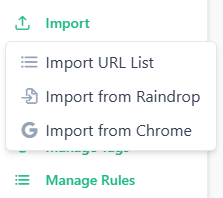
- Upload the downloaded CSV file.
Importing from Browsers (Chrome, Firefox, Safari, Edge)
All major browsers let you export bookmarks as a standard HTML file (Netscape bookmark format).
- Open your browser's bookmark manager.
- Look for an Export Bookmarks option (usually in the ⋮ menu or settings).
- Save the HTML file to your computer.
- In Linkflare, click your avatar → Import from Chrome.
- Upload the HTML file.
Importing from Pocket
Pocket exports your saved articles as a standard Netscape bookmarks HTML file.
- Log in to getpocket.com.
- Click your profile icon → Settings.
- Scroll to the Export section and click Export HTML file.
- Save the downloaded
ril_export.htmlfile. - In Linkflare, click your avatar → Import from Pocket.
- Upload the HTML file.
Importing from Instapaper
Instapaper exports your reading list as a CSV file with URL, title, selection, and folder columns.
- Log in to instapaper.com.
- Click your username → Settings.
- Under the Export section, click Download .CSV file.
- In Linkflare, click your avatar → Import from Instapaper.
- Upload the downloaded CSV file.
Importing from Goodreads
Linkflare can import your entire Goodreads library — including your read, currently-reading, and want-to-read shelves — and save each book as a bookmark with rich metadata.
- Log in to goodreads.com.
- Click My Books in the top navigation.
- In the left sidebar, click Import and Export (at the bottom of the panel).
- Click Export Library to download your CSV file.
- In Linkflare, click your avatar → Import from Goodreads.
- Upload the downloaded CSV file.
Each book in your Goodreads library will be imported as a Linkflare bookmark pointing to its Goodreads page, where Linkflare will then enrich it with cover art, author, and other book metadata.
Importing from YouTube
You can import your YouTube subscriptions or watch-later / playlist videos using Google Takeout. Linkflare supports both the CSV and JSON formats that Takeout provides.
- Go to takeout.google.com while signed in to your Google account.
- Click Deselect all, then check only YouTube and YouTube Music.
- Click the All YouTube data included button and select only the data you want (e.g. playlists, subscriptions, or watch history).
- Click Next step → Create export and wait for the download link.
- Extract the ZIP and locate one of these files inside the
YouTube and YouTube Music/folder:subscriptions/subscriptions.csv— your channel subscriptionsplaylists/Watch later videos.csv(or any playlist CSV) — individual videoshistory/watch-history.json— your full watch history
- In Linkflare, click your avatar → Import from YouTube.
- Upload the CSV or JSON file.
Importing a Plain URL List
Have a list of links in a text or CSV file? You can import them directly — no special format required.
- Prepare a plain text file (
.txtor.csv) with one URL per line. - In Linkflare, click your avatar → Import URL List.
- Upload the file.
Import Limits
Each import supports up to 10,000 URLs per file. If you need to import more, split your export into multiple files and run several imports. Imports run in the background so you can keep using the app while they process.