Documentation Menu
Embedding
Embed your Linkflare collections and saved searches directly on any website. Visitors can browse your curated lists without leaving your page — perfect for book recommendations, resource lists, gift registries, recipe collections, and more.
Live Example
Here's a real embedded saved search (Oscar Nominees for Best Picture) — 4 columns, cards showing title, link, image, and auto-extracted metadata, with the header, search bar, and sorting controls hidden:
Getting Started
Embedding requires a public collection or saved search. If you haven't shared one yet, see Sharing & Collaborating first.
- Open the collection or saved search you want to embed.
- Click the Share button in the header.
- Toggle Public Access to ON (if not already).
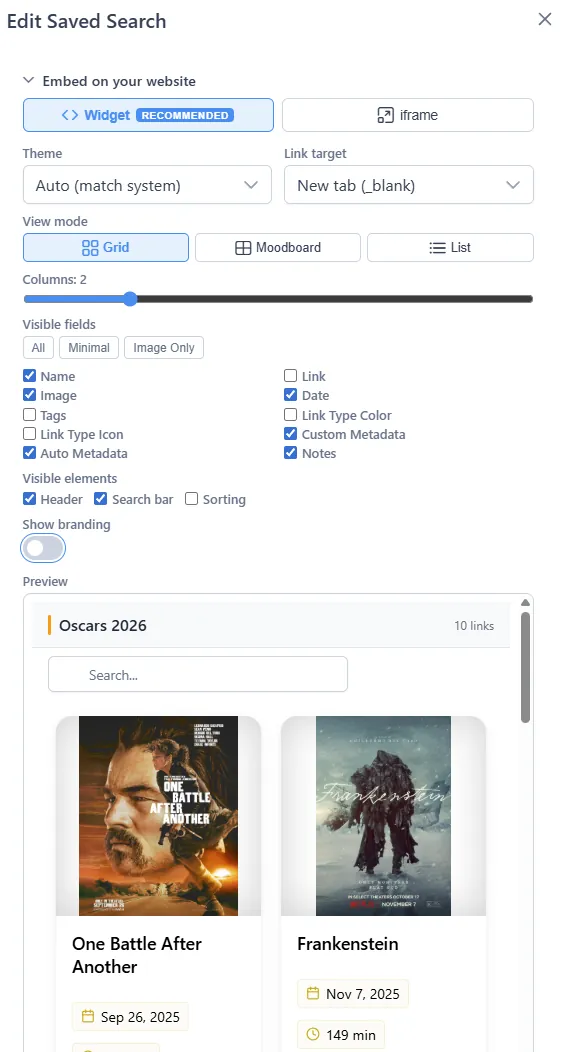
- Expand the Embed on your website section below the share URL.
- Customise the appearance (theme, view, fields — see below).
- Copy the generated code and paste it into your website's HTML.
Embed Methods
Linkflare offers three ways to embed content. All produce an auto-resizing, responsive iframe that inherits your visitor's light or dark preference by default.
Widget (Recommended)
The widget is the easiest option. Drop a <div> and a small
<script> into your page — done.
<div
  data-linkflare-collection="YOUR_SHARE_ID"
  data-theme="auto"
  data-view="grid"
  data-columns="3"
></div>
<script src="https://linkflare.io/embed.js" async></script>
For saved searches, replace data-linkflare-collection with
data-linkflare-search.
The widget renders a "Powered by Linkflare" link below the iframe, which helps
others discover the tool. Pro users can remove this with
data-branding="false".
iframe
Use a plain iframe if you prefer full control or your CMS does not allow custom scripts.
<iframe
  src="https://app.linkflare.io/embed/collection/YOUR_SHARE_ID"
  width="100%"
  height="600"
  frameborder="0"
  style="border:0;border-radius:8px;"
  loading="lazy"
  allowtransparency="true"
></iframe>
Web Component
The same embed.js script also registers a
<linkflare-embed> custom element. Use it when you want a
clean, self-describing tag:
<linkflare-embed
  type="collection"
  share-id="YOUR_SHARE_ID"
  theme="auto"
  view="grid"
  columns="3"
></linkflare-embed>
<script src="https://linkflare.io/embed.js" async></script>
Customisation Options
All options can be set visually in the embed generator inside the share dialog — the generated code updates in real-time. You can also set them manually using data attributes (widget), element attributes (web component), or URL query parameters (iframe).
Theme
Choose Auto (matches the visitor's system preference), Light, or Dark.
| Method | Attribute / Param |
|---|---|
| Widget | data-theme="dark" |
| Web Component | theme="dark" |
| iframe URL | ?theme=dark |
View Mode
Three layouts are available: Grid (default), Moodboard (masonry), and List.
- Widget:
data-view="masonry" - Web Component:
view="masonry" - iframe URL:
?view=masonry
Columns
In Grid or Moodboard mode you can set the number of columns (1–6, default 3). This is ignored in List mode.
- Widget:
data-columns="2" - Web Component:
columns="2" - iframe URL:
?columns=2
Visible Fields
Control which bookmark fields appear on each card. By default all fields are shown. Pass a comma-separated list of the fields you want visible:
| Field key | Shows |
|---|---|
name | Title |
link | URL |
image | Thumbnail image |
date | Date added |
tags | Tags |
linkType | Link type colour bar |
linkTypeIcon | Link type icon badge |
customMetadata | Custom metadata fields |
automaticMetadata | Auto-extracted metadata |
notes | Notes |
Example — show only image \and title:
- Widget:
data-fields="name,image" - iframe URL:
?fields=name,image
The embed generator also has quick presets: All, Minimal (title + URL only), and Image Only.
Visible Elements
You can hide specific UI elements of the embed. Pass a comma-separated list of elements to hide:
header— the collection name and description at the topsearch— the search barsorting— the sort dropdown
Example — hide the header and sorting:
- Widget:
data-hide="header,sorting" - iframe URL:
?hide=header,sorting
Link Target
Choose where clicked links open: New tab (_blank,
default) or Same tab (_top).
- Widget:
data-target="_top" - iframe URL:
?target=_top
Height
Set the initial iframe height in pixels (default 600). The widget and web component auto-resize to fit content, so this is mainly relevant for plain iframes.
- Widget:
data-height="800" - Web Component:
height="800" - iframe:
height="800"
Branding
By default, the widget displays a small "Powered by Linkflare" link below the embedded content. This link is rendered outside the iframe, giving your page a real SEO backlink.
Pro users can hide this branding via the toggle in the embed
generator, or manually with data-branding="false" /
?branding=0.
Password-Protected Embeds
If a shared collection or saved search is password-protected, the embed will display an inline password form. Visitors enter the password once per session to unlock the content — no redirect needed.
Embed Analytics
Every embed tracks anonymous view counts automatically. Open the embed section in the share dialog to see your stats:
- All users — total embed view count.
- Pro users — plus a referrer breakdown showing which sites are displaying your embed.
oEmbed
Linkflare exposes an oEmbed endpoint, which means platforms like WordPress, Medium, and Notion can automatically embed your collections when you paste a share URL.
The oEmbed discovery URL follows this pattern:
https://api.linkflare.io/linkflare/collections/{shareId}/oembed
https://api.linkflare.io/linkflare/searches/{shareId}/oembed
Quick Reference
| Option | Widget attr | URL param | Values |
|---|---|---|---|
| Theme | data-theme | theme | auto | light | dark |
| View | data-view | view | grid | masonry | list |
| Columns | data-columns | columns | 1–6 |
| Hide elements | data-hide | hide | header, search, sorting |
| Fields | data-fields | fields | Comma-separated (see table above) |
| Link target | data-target | target | _blank | _top |
| Branding | data-branding | branding | false / 0 (Pro only) |
| Height | data-height | — | Pixels (default 600) |