Web Highlighter — Highlight Any Website, Keep Every Passage
Add the Linkflare highlighter extension to Chrome, Firefox, Edge, or Safari, select text on any web page, and pick a color. Your highlights reappear the next time you open the page, and every passage you have ever marked stays searchable in one library, right next to the bookmark it came from.

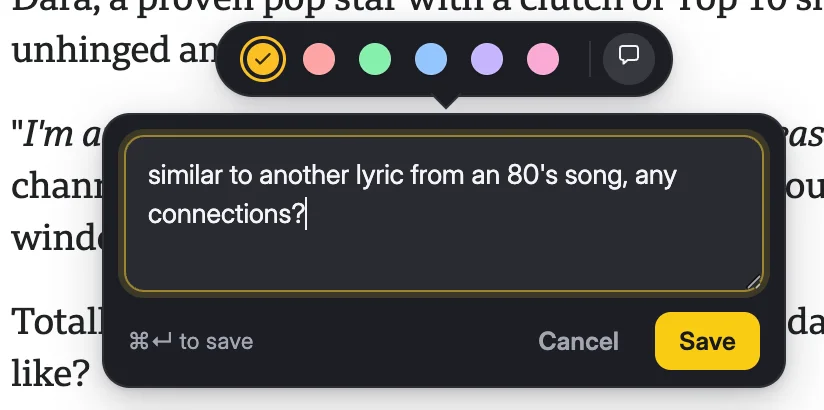
Select. Pick a Color. Done.
No sidebar to open, no page to save first. Highlight three words on any website and it is stored before you finish reading the sentence.
Everything a Website Highlighter Should Do
Marking the passage is the easy part. Finding it again months later is the point.
Highlight Any Website in Six Colors
Select text on any web page and pick yellow, coral, green, blue, purple, or pink from the floating toolbar. Use color however you like — by topic, by importance, or by reading pass.
Add a Note in the Moment
The thought you have while reading is the one you lose first. Attach a note to any highlight right on the page — a question, a counter-argument, a reminder of why the passage matters.
One Searchable Highlight Library
Every passage you have ever marked lands on your Highlights page, grouped with the page it came from. Search by highlight text or note content and jump straight back to the source.
Your Highlights Come Back
Open the page again and the highlights re-render where you left them, re-anchored by the surrounding text. A thin strip of colored dots on the right edge scrolls you to any of them in one click.
Share a Highlight as an Image
Turn any passage into a designed quote card — five templates, five palettes each, and sizes for Instagram, Stories, X, and LinkedIn. Download the PNG or copy it straight to your clipboard.
Export to Markdown, Free
One click downloads your whole highlight library as a single Obsidian-friendly Markdown file, grouped by source page with notes and dates. Free on every plan — your highlights are yours.
The Passage Outlives the Page
A highlighter that only paints the page is a highlighter you lose. Every mark you make is saved to your Highlights library with its note, its color, and a link back to the source. Highlighting a page you have not saved yet quietly bookmarks it for you — without cluttering your inbox.
- ✓ Full-text search across every highlight and note
- ✓ A highlight count chip and a "has highlights" filter on your bookmarks
- ✓ One-click Markdown export, free on every plan
- ✓ The Vault archives the whole page on Pro, so a dead link never takes your evidence with it
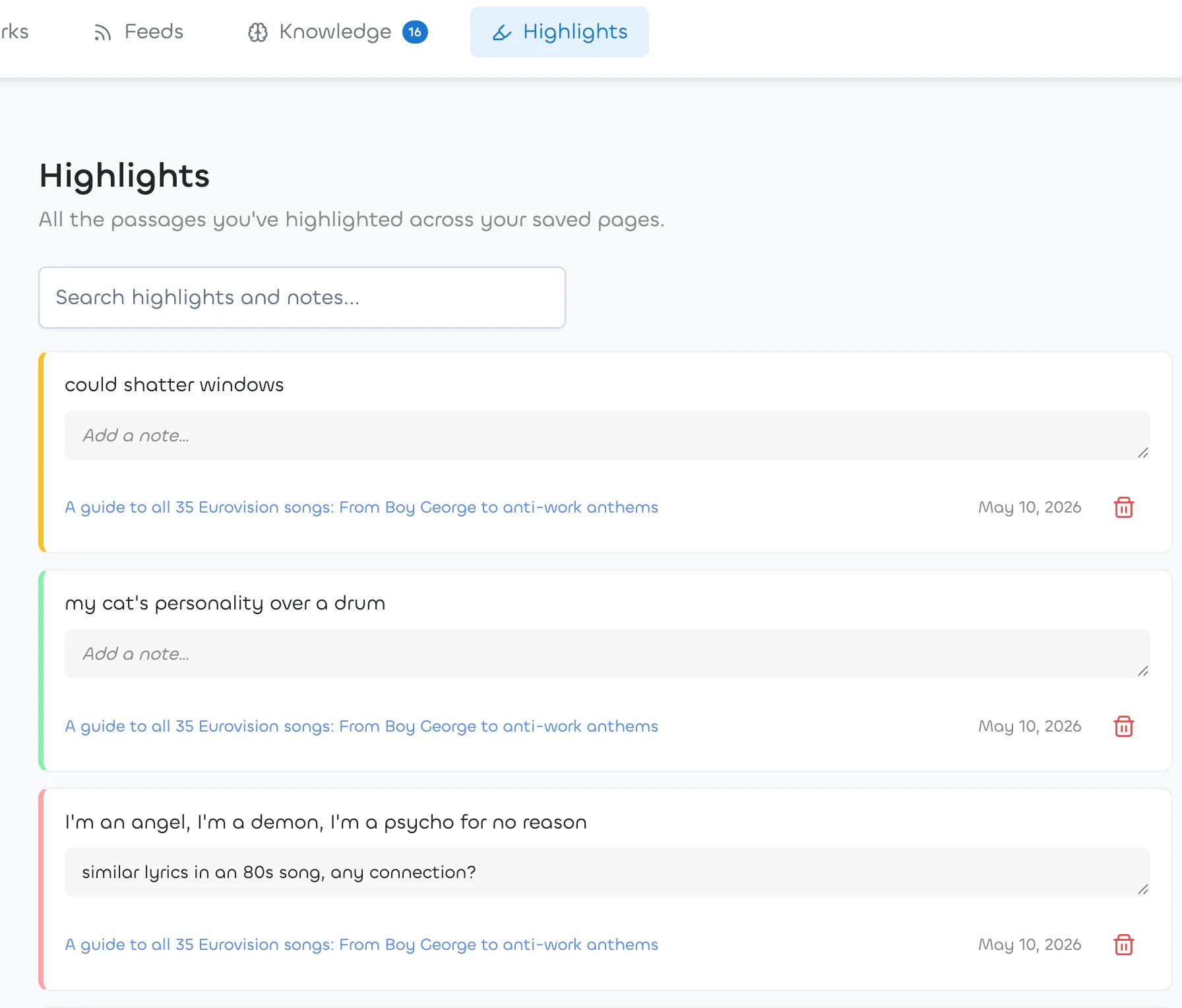
How It Works
Install the extension
Add Linkflare to Chrome, Edge, Brave, Opera, or Firefox, or turn it on in Safari from the Linkflare app for Mac. Sign in once and the highlighter is armed on every site.
Select and highlight
Select three or more words on any page. A small toolbar appears above the selection: click Highlight for yellow, or open the color picker for the other five.
Note why it matters
Type a note into the popover before you save. It travels with the passage everywhere — the page, your library, the Markdown export, the share image.
Find it months later
Search your Highlights page by text or note. Every hit links back to the bookmark it came from, so the passage never loses its context.
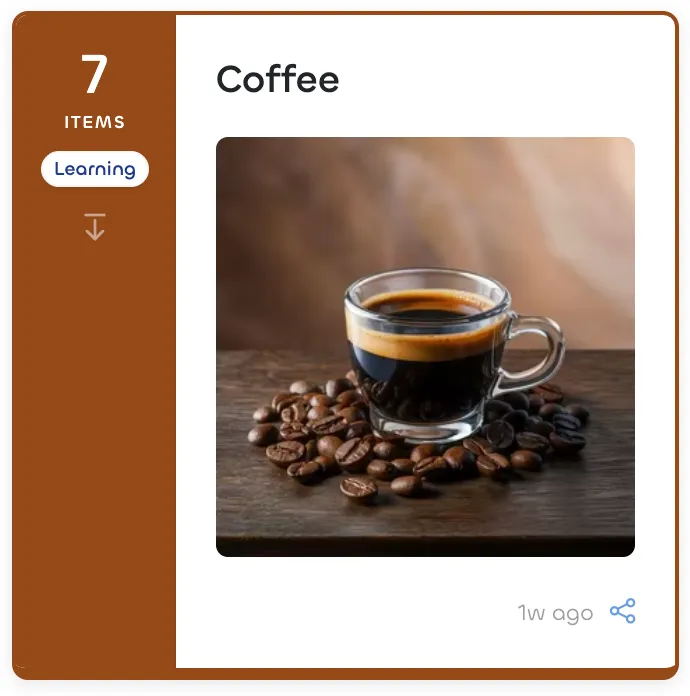
Highlighting Is Not Remembering
A yellow stripe on a page you never reopen is a bookmark with extra steps. Linkflare Pro adds knowledge cards: write the idea behind a passage in your own words, link the bookmark you highlighted, and the card joins a spaced-repetition queue that brings it back right before you would have forgotten it — with an activity heatmap to show the streak.
Most highlighter extensions stop at the highlight. Read the personal knowledge base guide for the workflow that turns a year of highlights into something you can actually recall.
A Highlighter Extension vs. Linkflare
The highlighting is comparable. What happens to the highlight afterwards is not.
A dedicated highlighter
- ✓ Highlight text on any website
- ✓ Notes on a highlight
- ✗ Highlights live apart from your bookmarks
- ✗ No reader mode or offline copy of the page
- ✗ No archive when the source goes dead
- ✗ No spaced-repetition review
- ✗ Yet another subscription beside your bookmark manager
Linkflare
- ✓ Highlight text on any website, in six colors
- ✓ Notes on a highlight, editable anywhere
- ✓ Highlights sit on the bookmark they came from
- ✓ Reader mode and offline reading built in
- ✓ Vault archive of the page (Pro)
- ✓ Knowledge cards with SM-2 review (Pro)
- ✓ One app for bookmarks, reading, and highlights
Coming from a highlighting-first tool? See Linkflare vs Readwise and Linkflare vs Diigo.
Web Highlighter — FAQ
Which browsers does the Linkflare web highlighter work in?
Install it from the Chrome Web Store for Chrome, Edge, Brave, and Opera, from the Edge Add-ons store, or from Firefox Add-ons. Safari support comes with the Linkflare app for Mac: open it once, then turn on Linkflare in Safari Settings > Extensions. Highlighting works the same way in all of them, and everything you mark syncs to the same library.
How is this different from Glasp, Weava, or Web Highlights?
Those are dedicated highlighter extensions: highlighting is the whole product, so your marked passages live in a tool separate from everything else you save. Linkflare is a universal bookmark manager that happens to highlight, so a passage sits next to the article it came from, the tags and collection you filed it under, the reader-mode copy, and the Vault archive of the page. If you already juggle a bookmark manager and a highlighter, this replaces both.
Does the highlighter work on PDFs?
Not yet, and we would rather say so than dodge it. In-page highlighting needs real HTML text; browsers render PDFs inside a built-in viewer that extensions cannot reach the text layer of. What you can do today is save the PDF as a bookmark from the extension — it gets a title, tags, a collection, and full-text search alongside your web highlights.
Is the web highlighter free?
Yes. Highlighting, notes, the searchable Highlights library, share images, and the Markdown export are all on the free plan, along with 1,000 bookmarks. Linkflare Pro adds the Vault (a permanent archive of the pages you highlighted), knowledge cards with spaced-repetition review, and removes the small Linkflare mark from exported share images.
Can I export my highlights?
Yes — click Export on the Highlights page and you get one Markdown file with every passage grouped under a linked heading per source page, each note inside the quote and each date underneath. It drops straight into an Obsidian vault, Logseq, Bear, or any editor that reads Markdown. It is client-side, free on every plan, and covers up to 5,000 highlights per export.
Is what I highlight private?
Yes. Highlights are tied to your account and are never public unless you choose to share the bookmark they belong to. Linkflare stores the text you highlighted, your note, the page URL and title, the color, an approximate scroll position, and a few characters of surrounding text used to re-anchor the highlight on your next visit. The content script never uploads the rest of the page.
Do highlights break when the page changes?
Usually not. Linkflare re-anchors each highlight by the text around it rather than by a brittle position, so it survives most edits and layout changes. On a page rewritten heavily between visits the anchor can fall back to the first matching occurrence, and if every layer fails the passage still lives in your Highlights library and in your exports — it just stops rendering on the page. On Pro, the Vault also keeps an archived copy of the page itself, so the source survives even when the site goes down.
Other Ways People Use Linkflare
Learn more: Highlights Docs · Browser Extension · Knowledge Management · Personal Knowledge Base Guide · Vault
Stop losing the best sentence on the page
Highlight it, note it, and find it again years later — free, in the browser you already use.
Start Highlighting — Free