Bookmark Manager: The Complete Guide to Organizing Your Links
Most people reading this have a monitor full of browser tabs and at least one important link that slipped through the cracks of their browser. A bookmark manager is a dedicated tool for saving, organizing, searching, and revisiting web pages, articles, PDFs, and videos across all your devices.
The usual workflow is dozens of open tabs in Chrome, links buried in Slack messages, starred emails with articles you meant to read "later", and URLs copied into notes you never open again. Your research ends up spread across Firefox on your desktop, Safari on your phone, and a Google Doc you can no longer find.
There is more to keep track of in 2026. Remote work spreads your resources across more places, AI research tools produce more material than you can get through, and newsletters arrive every day with more links to click. Handling that volume in browser bookmarks alone wastes your time and loses resources for good.
What exactly is a bookmark manager, and why do you need one in 2026?
Chrome and Firefox let you save bookmarks in folders. A dedicated manager adds a proper tagging system, full text search, archiving to protect against link rot, collaboration features for teams, and a distraction-free reading experience for saved articles. Categorising, tagging, nested collections and visual organisation keep your content easy to manage and reach however large the collection gets.
Browser bookmarks get slow and unwieldy once you have a few hundred links saved. User reports put search times up to 50% slower once a collection tops 1,000 bookmarks. The average user saves over 500 links a year, so a browser's built-in system starts to struggle within two years of active use.
A marketer researching competitors saves landing pages, ad screenshots, blog posts, and industry reports every day. In browser bookmarks, finding "that pricing page from that SaaS company I looked at in March" is a real pain. In a bookmark manager, a few words from the page content surface it instantly.
A developer saving documentation, Stack Overflow threads, GitHub repos, and tutorial videos has the same problem: getting back to a code snippet they found six months ago. Browser bookmarks only search titles and URLs, so they cannot do it. A dedicated tool can.
How can you connect your bookmarks to your entire digital world?
A bookmark manager earns its place by tying in with the other tools you already use instead of becoming another silo. Integration with your apps, browsers, and devices is what separates a useful tool from another place to lose links.
Modern bookmark managers should have browser extensions for Chrome, Firefox, Safari, and Edge, so you can save links with one click from anywhere. Mobile apps for iOS and Android let you save links on the go, and some tools have Gmail or Outlook add-ons for saving links straight out of an email.
REST or GraphQL APIs connect your bookmark manager to other tools: Notion for knowledge management, Obsidian for research workflows, or Airtable, Trello, or Asana for project tracking.
Automation covers the rest. The best tools save links automatically from RSS feeds, capture newsletter links forwarded to a unique email address, or run workflows in Zapier, Make, or IFTTT that save links from specific triggers. You can also connect Slack and Microsoft Teams for instant link sharing, or sync with Google Drive to back up archived pages.
Organising your bookmarks: strategies for clarity and sanity
A cluttered bookmark library is hard to search when you need something, so start with tags. Several tags per bookmark, such as "research", "design", or "inspiration", let you filter and search the collection however big it gets.
Folders and nested collections group related bookmarks. A main folder for "Work" can hold nested collections for each client or project, and another for "Personal" can hold subfolders for hobbies, travel, or shopping. That structure keeps your favourite websites, articles, and resources reachable instead of buried.
Go through your bookmarks regularly and get rid of duplicate links and outdated entries. A lot of newer bookmark managers have duplicate detection built in, which keeps the collection tidy enough to use. Folders, tags, and nested collections together make an organisation system where every bookmark stays easy to find, so the library works as a resource instead of a digital junk drawer.
Search everything with full-text and smart filters
Browser bookmarks match titles and URLs only, so typing in the words you remember from the article itself gets you nowhere.
Full text search works the other way round. A proper bookmark manager indexes the entire content of the web pages and PDFs you save, and uses OCR for images too. When you remember “that article about how to reduce customer churn with onboarding emails,” those words find it, even if the title was something boring like “Growth Strategies for 2027.”
Advanced search adds filters. These include:
- Tag filters: Find all bookmarks that have been tagged with things like “AI” + “marketing”
- Date filters: Show only links you saved in Q1 2026
- Source filters: Display bookmarks you saved from your browser, email, or API
- Type filters: Filter by things like files, videos, articles or code snippets
- Domain filters: See everything saved from a specific website
Newer tools add typo-tolerant search, so “reciepe” still finds “recipe”, and AI powered suggestions that answer questions like “show me all AI marketing guides saved in 2026”. Saved search views store a recurring query you can reopen with a single click.
Browser bookmarks rely on title matches, while a dedicated bookmark manager lets you do semantic search across the entire thing.
Stay safe: privacy, security and long-term access
What you save often includes sensitive resources: company dashboards, research documents, private Notion pages and files stored in cloud drives. A bookmark manager that doesn't take security seriously is putting all of that at risk.
End-to-end encryption should protect your private collections so that the service provider can't even read your data. Look for TLS encryption in transit as a minimum, with zero-knowledge encryption options for business users who handle confidential information. Granular sharing controls and role-based permissions for teams let you decide exactly who sees what.
A good tool won't track your browsing habits, sell your data to advertisers or break GDPR. Organisations should also be able to choose the data residency for where their bookmarks live.
Long-term access gets overlooked easily. Pages get deleted, sites go down and important articles disappear. Archiving features that snapshot saved articles will protect against link rot.
Security checklist for evaluating any bookmark manager:
- End-to-end encryption for private collections
- TLS/HTTPS for everything moving around in the background
- Two-factor authentication (2FA) support
- Zero-knowledge encryption option
- Granular sharing and access controls
- No third-party trackers or data selling
- GDPR compliance and a clear privacy policy
- Archive snapshots for offline reading and link preservation
- Activity logs for team accounts
- Regular backup and export options
Pricing and limits: free plans to power-user tiers
Most bookmark managers have free plans that are fine for casual use and paid plans that unlock the premium features. Knowing what each tier usually includes helps you pick one without overpaying.
In 2026 you can expect a free tier with basic saving, limited full-text search history and perhaps a cap on bookmarks (usually 1,000-5,000). Pro tiers cost between $3-$6 a month and unlock unlimited bookmarks, deeper search history and better archiving. Team or business tiers run $8-$15 per user per month and add shared collections, admin controls and priority support.
What to check before choosing a pricing tier:
- Number of bookmarks allowed (some even come with unlimited on the free plan)
- Full-text search depth (some limit history on free plans)
- Archived copies quota and storage size for files
- Number of shared collections and collaborators
- Number of automation runs per month for integrations
- Export options (HTML, CSV, JSON)
- Platform support (desktop, mobile apps, browser extensions)
- Offline access availability
- Privacy guarantees and encryption level
Compare more than bookmark counts. Check that the plan supports all your devices, has the collaboration features you need for team projects, keeps enough archive depth for your research and includes reliable export so you're never locked in.
Core features to look for in a modern bookmark manager
Beyond pricing and integrations, your daily experience will depend on the features you touch every time you save or look for a link.
Organization tools come first. Look for a tool that lets you put several tags on each bookmark, which is what makes flexible sorting possible. Nested folders and collections build a hierarchy like 'Work > Clients > Project Alpha'. Smart folders that auto-populate based on rules, such as "all AI articles saved in 2026", keep themselves up to date. Custom icons or emojis add a bit of colour and make a large collection quicker to scan.
Productivity helpers speed up your daily routine. Keyboard shortcuts save and navigate without reaching for the mouse. Browser extensions and mobile share sheets put saving one click away. Bulk edit, move and delete keep a growing collection in check, and duplicate detection stops the same link piling up several times.
Collaboration features matter for teams. Shared folders let your colleagues get to the same resources as you, and public collections create a sort of 'playlist' of links you can share with anyone. Role-based permissions (view, comment, edit) let agencies and project teams control what clients can do with the resources they manage for them.
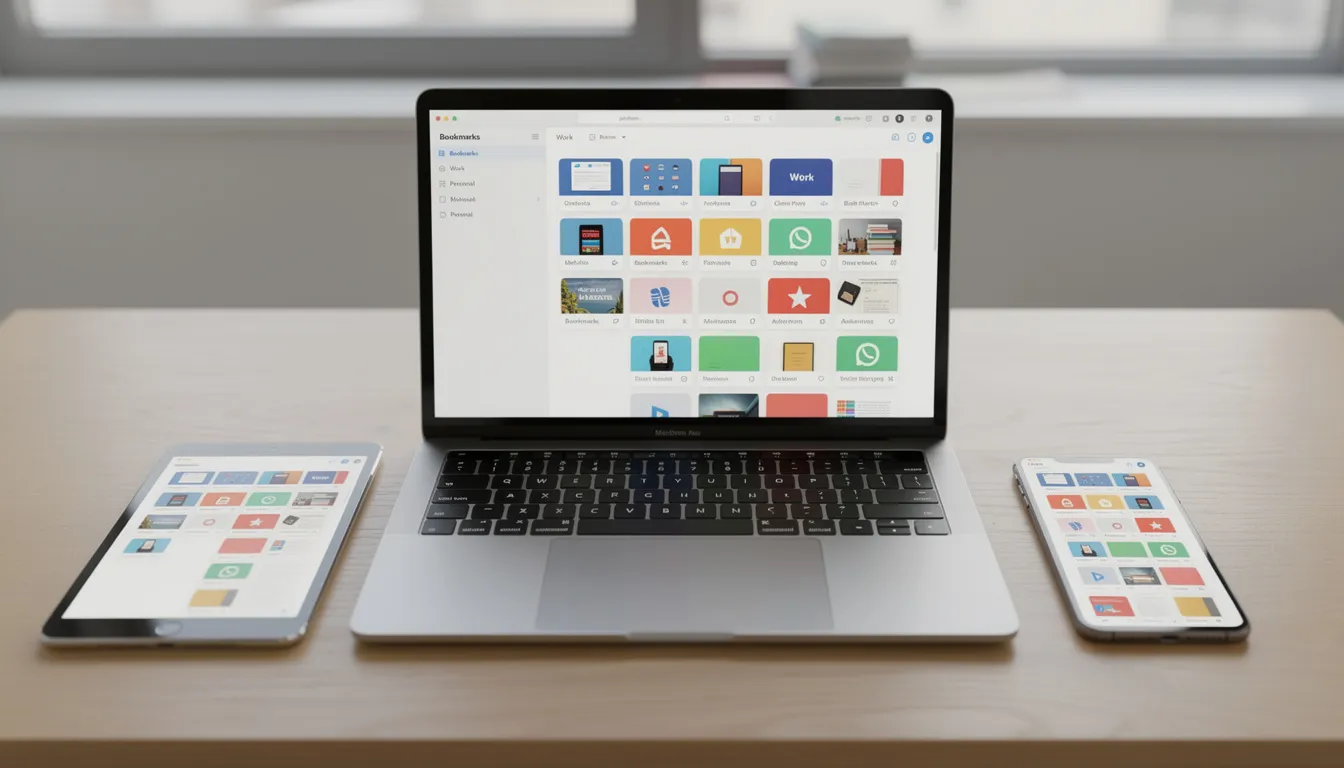
Sync should carry a change to your computer, laptop, tablet and phone straight away. Offline access to saved content lets you read your articles on a flight or during your commute without an internet connection.
Essential features checklist:
- Multiple tags per item
- Nested folders or collections for hierarchies
- Smart folders with auto-population rules
- A clean and intuitive interface (with dark mode if you want it)
- Keyboard shortcuts for quick access to bookmarks
- A browser extension for Chrome, Firefox, Edge, etc
- Mobile apps for iOS and Android
- Bulk operations for managing a big library
- Duplicate detection and merging
- Shared collections with role permissions
- Real-time sync across all devices
- Offline access for saved content
- Archive snapshots for permanent access
- Full-text search with filters
- Syncing across laptop, tablet, smartphone
Bookmark managers vs task managers vs note-taking apps
Bookmark managers overlap with task managers like Todoist and Asana, and note-taking apps like Notion, Evernote or Obsidian. Working out where each one is strongest helps you use your bookmarks properly and not duplicate effort across tools.
Some bookmark managers let you turn a saved link into a task. You can add due dates ("read this by Friday") and set reminders for time-sensitive resources. Some have Kanban-style boards for organizing your links.
Hybrid workflows often work best. You might save a link to your bookmark manager for quick retrieval and then paste it into a project note in Notion for deeper synthesis. Some tools create a task in your preferred task manager when you star a bookmark. Whatever the setup, avoid entering the same thing twice and keep your resources accessible.
How they compare:
| Tool Type | Best For | Weakness |
|---|---|---|
| Bookmark Manager | Quick capture and retrieval | Not so great for long-form research |
| Task Manager | Deadlines and project workflows | Not meant for storing resources |
| Note-Taking App | Synthesis, long-form thinking | Slower for capture and less focused on links |
Bookmark managers work best when you need to quickly capture and instantly retrieve web resources. Note apps work better when you're putting multiple sources into original writing, and task managers are for tracking what needs doing and when. Many users end up using all three, connected by integrations.
Top bookmark manager apps to consider in 2026
The market changes every year, but some tools have consistently ranked high across 2025-2026 roundups. Each one is good for different use cases, so your choice depends on your workflow.
- Linkflare.io: A Bookmark Manager That Lets You Get the Most Out of Your Links
Linkflare.io is a modern and comprehensive bookmark manager that lets you make the most out of your links. Its features include the option to read things later, complex tagging, automation, and moodboards that put everything in one view. - Raindrop.io: Visual Collections for the Power User
Raindrop.io has visual collections for the power user who wants to nest collections and see previews of what's inside. Its polished look and feel suit designers and researchers who think visually. See our Linkflare vs. Raindrop comparison for a detailed breakdown. - Pocket: Distraction Free Reading Experience
Pocket was once a leading read-later app, but it shut down in July 2025. If you were a Pocket user, check our guide on the best alternatives. - Pinboard: The Simple, Reliable Option
Pinboard is a minimalist, text-based bookmark manager, reliable and built for developers and writers who value simplicity and permanent archiving over flashy features. - Diigo: Research and Annotation Made Easy
Diigo is a research and annotation focused bookmark manager that lets you highlight key passages, and it is popular in academic settings for collaborative research. - Toby: Tab Manager Meets Bookmark Manager
Toby combines a tab manager and a bookmark manager, organizing open tabs into collections. It suits people who are constantly juggling lots of tabs at the same time. - Start.me: Dashboard Style Bookmark Manager
Start.me is a bookmark manager that works like a dashboard, with customizable bookmark widgets, for users who want their favorite websites front and center all the time. - Liner: A Highlighting Specialist
Liner saves key paragraphs or video scenes from articles, PDFs and videos instead of the whole page. - Eagle: Visual Asset Management for Designers
Eagle is built for designers and manages visual assets: images, videos and bookmarks, with ratings, colours, and in-app previews.
Choose based on your primary use case: Raindrop.io or Eagle for visual organisation, Pocket for reading, Pinboard for archiving, Diigo for research and annotation, and Toby if you’re drowning in tabs.
You Never Lose Anything with a Bookmark Manager
A modern bookmark manager saves articles for offline access, so they are still there when you're traveling, commuting or stuck somewhere with a dodgy internet connection.
The reading view strips out the clutter and ads and leaves the content, which is easier to absorb. Between the two, downtime at the office, at home or on the go turns into reading time.
Sharing and Collaborating with a Bookmark Manager
Sharing a collection of bookmarks with colleagues, classmates or collaborators gives everyone access to the same resources.
Some tools go past the links themselves and carry tasks, notes and progress updates, so a complex project and its sources sit in one place. Used that way, a bookmark manager becomes a shared knowledge base that keeps important bookmarks available to everyone who needs them.
Making it Truly Yours: Customisation and Personalisation
Modern bookmark managers are customisable enough to fit the way you already work. Tag bookmarks however you like, create collections that match your projects or interests, and set the interface with options like dark mode or custom icons.
Premium features such as full text search, advanced tagging and offline access let you search for specific content rather than just a title or URL, which makes things easier to find.
Syncing and Mobile Access: Your Bookmarks Wherever You Are
Work and life happen across a lot of devices. Real time sync keeps your bookmarks up to date whether you're on the computer at home or on the move with your phone or tablet.
Mobile apps save new links, tag resources and browse your collections from anywhere, as long as you've got an internet connection.
How to get your first bookmark manager up and running (a step-by-step guide)
Setting up a full-featured bookmarking system for the first time can seem like a daunting task, but it's actually pretty straightforward. These seven steps will get you started this week.
Step 1: Choose your tool Pick a manager that fits your needs, based on our comparison above. You can probably switch later on if you need to, since most tools can export in standard formats.
Step 2: Get the extensions and apps downloaded Download the browser extensions for Chrome, Firefox or whatever browser you use, and install the mobile apps on your phone & tablet. This means you can save bookmarks wherever you are.
Step 3: Import any existing bookmarks Most of the major bookmark managers can import from your browser bookmarks. So, export your Chrome or Safari bookmarks as an HTML file, then import them into your new tool. This gives you a head start.
Step 4: Merge duplicates Most tools can detect duplicates for you. Have a run through this once you've imported your bookmarks to merge any duplicates and get a clean slate.
Step 5: Set up your top level folders Start simple with no more than 4-5 top level folders: Work for professional resources, Personal for hobbies and shopping, Research for project articles, Read Later as the queue for offline reading, and Archive for important pages you want to keep.
Step 6: Set up any automations you need Set up integrations that fit your workflow: forward newsletter links via email, connect Slack to save shared links and set up a Zapier workflow for RSS feeds you follow.
Step 7: Establish a regular review routine Set aside 15-20 minutes each week to process your "read later" queue, tidy up your tags and drag items into their respective collections. This helps prevent clutter from building up.
Frequently asked questions about bookmark managers
Can you use bookmarks offline? Yes, most premium plans include offline access for saved articles. The tool downloads the content to your device, so you can read it without a connection.
How many items can you save on the free plan? It depends on the tool. Some include unlimited bookmarks on the free tier, while others cap at 1,000-5,000 items. The usual limits are on archiving and full-text search rather than the raw bookmark count.
Can you export your data if you switch to a different tool? Yes, most bookmark managers support standard export formats like HTML, CSV and JSON, so you can move your data to a new tool or back to browser bookmarks.
Do bookmark managers work across different browsers? Yes. Browser bookmarks are tied to Chrome or Firefox, while a dedicated manager syncs your data through the cloud. Install its extension in several browsers and your collections stay in sync.
Just how secure are your private bookmarks? Reputable tools use end-to-end encryption for private collections and usually have two-factor authentication. Check the privacy policy to be sure they do not sell your data.
Can you share collections with your team or clients? Yes, most tools support shared folders with granular permissions. You can share a collection publicly with a link, invite collaborators with edit or view access, or create read-only collections for clients.
What happens when the pages you saved are deleted or go offline? Tools with archiving features save a snapshot of each page when you bookmark it, so a broken link still leaves you with a copy.
Ready to tidy up your digital life?
Tab overload, scattered research and lost links are not inevitable. A dedicated bookmark manager reduces clutter, provides faster search through full-text indexing and archiving against disappearing pages and even enables team collaboration.
You search the actual content you saved rather than guessing at vague browser bookmark titles, an archived copy survives a broken link, and resources stay in one organised searchable system instead of scrolling away in chat threads.
Here's your action plan: Choose one tool today (Raindrop or Pocket work well if you want a visual org or just want to focus on reading). Tonight, import your existing bookmarks and run duplicate detection. Then, this week, set aside 20 minutes to set up your folder and tag structure. Keep it simple: 5 collections at a start.
A system that works surfaces the right resources when you need them and gets out of your way otherwise. With content overload getting worse, that is worth the twenty minutes it takes to set up.
Keep Reading
Best Bookmark Managers in 2026
Ranked reviews of the top bookmark tools including Linkflare, Raindrop.io, and more.
Linkflare vs. Raindrop.io
A detailed comparison to help you pick the right knowledge manager.
The Best Read It Later Apps in 2026
Save articles and videos for distraction-free reading across all your devices.
Top 7 Pocket Alternative Apps to Use in 2026
Pocket shut down. Find the best replacement for your saved reading archive.
The Best Wishlist App in 2026
Create shareable wishlists from any store, organize by occasion, and share with one link.