Bookmark Manager: The Complete Guide to Taming Your Digital Chaos in 2026
You're probably sitting at your desk right now, staring at a sea of browser tabs on a large monitor - it's a familiar sight. And if you've ever frantically searched for an important link that slipped through the cracks of your browser, you know exactly what I'm talking about. That's where a bookmark manager comes in - a dedicated tool that lets you save, organize, search, and revisit web pages, articles, PDFs, and videos across all your devices.
Think about your current workflow for a second. You're juggling dozens of open tabs in Chrome - and who hasn't been there? - saving links in Slack messages that inevitably disappear into the void, starring emails with articles you're going to get to "later", and copying URLs into random notes that end up getting lost in the ether. Your research is scattered across Firefox on your desktop, Safari on your phone, and that one Google Doc you can't seem to find anymore.
The 2026 reality makes this mess even worse. Remote work means you're juggling a whole lot more digital resources than ever before. AI research tools are churning out more content than you know what to do with, and your inbox is flooded with newsletters every day that all want you to click on links. Relying solely on browser bookmarks to manage this info-overload isn't just a waste of time - it's a surefire way to lose valuable resources forever.
So, what exactly is a bookmark manager - and why do you need one in 2026?
A good bookmark manager is way more than your browser's built-in bookmarking system. Sure, Chrome or Firefox lets you save bookmarks in folders, but a dedicated manager adds all sorts of bells and whistles - like a robust tagging system, full text search, archiving to protect against link rot, collaboration features for teams, and a distraction-free reading experience for saved articles. Plus, advanced organisational features, like categorising, tagging, nesting collections, and visual organisation, make it a breeze to manage and quickly access your content, no matter how massive your collection gets.
Here's the thing: browser bookmarks get real slow and unwieldy once you've got a few hundred links saved. User reports are saying that search times slow down by up to 50% when your collection tops 1,000 bookmarks. And let's be real - the average user saves over 500 links a year, which means your browser's built-in system will struggle to keep up within two years of active use.
Let me give you an example. A marketer researching competitors might be saving landing pages, ad screenshots, blog posts, and industry reports daily - and if they're relying on browser bookmarks, finding "that pricing page from that SaaS company I looked at in March" is a real pain. With a proper bookmark manager, though, they can just type a few words from the page content and - voila! - it surfaces instantly.
Or imagine a developer saving documentation, Stack Overflow threads, GitHub repos, and tutorial videos. They need to be able to get to code snippets they found six months ago in a flash. A dedicated tool can do that for them - but browser bookmarks can't, because they only search titles and URLs.
So how can you connect your bookmarks to your entire digital world?
The best bookmark manager doesn't just add another silo to your workflow - it ties in with all the other tools you use. Integration with your apps, browsers, and devices is what separates a useful tool from just another place to lose links.
Modern bookmark managers should have browser extensions for Chrome, Firefox, Safari, and Edge, so you can save links with one click from anywhere. Mobile apps for iOS and Android let you save links on the go, and some tools even have Gmail or Outlook add-ons so you can save important links directly from emails.
Power users will love the REST or GraphQL APIs that let you connect your bookmark manager to all sorts of other tools - Notion for knowledge management, Obsidian for research workflows, or Airtable, Trello, or Asana for project tracking.
And then there's automation - the best tools let you save links automatically from RSS feeds, forward newsletter links to a unique email address that captures them, or even build workflows with Zapier, Make, or IFTTT to save links from specific triggers. You can also connect with Slack and Microsoft Teams for instant link sharing, or sync with Google Drive for backing up archived pages.
This integration layer turns a bookmark manager from a simple storage tool into the central hub for all your saved links across the web.
Organising your bookmarks: strategies for clarity and sanity
A cluttered bookmark library can quickly become overwhelming, making it hard to find the resources you need when you need them. To keep your digital life streamlined, start by implementing a robust tagging system. Assigning multiple tags to each bookmark - like "research", "design", or "inspiration" - lets you filter and search your collection with ease, no matter how big it gets.
Folders and nested collections are equally important for grouping related bookmarks together. For example, you might make a main folder for "Work" with nested collections for each client or project, and another for "Personal" with subfolders for hobbies, travel, or shopping. This structure makes it simple to navigate and access your favourite websites, articles, and resources without getting lost in a sea of links.
Regularly go through your bookmarks and get rid of duplicate links and outdated bookmarks. A lot of newer bookmark managers now come with duplicate bookmark detection built-in , keeping your collections tidy and streamlined so you can actually make use of the tools they are providing. By setting up folders, tags, and nested collections you can create an organisation system that makes every single bookmark easy to find – turning your library into a super useful resource rather than just a digital junk drawer.
Search everything with full-text and smart filters
If you've ever tried to find a saved page by typing in words you remember from the article, not the title, you know browser bookmarks are pretty rubbish at it. They only search titles and URLs. Which is pretty useless if you're trying to remember something specific.
Full text searching though is a game changer. A proper bookmark manager indexes the entire content of the web pages and PDFs you save - and uses OCR for images too. When you remember “that article about how to reduce customer churn with onboarding emails,” you can search for those very words and find it, even if the title was something boring like “Growth Strategies for 2027.”
And then there are the advanced search features. These include:
- Tag filters: Find all bookmarks that have been tagged with things like “AI” + “marketing”
- Date filters: Show only links you saved in Q1 2026
- Source filters: Display bookmarks you saved from your browser, email, or API
- Type filters: Filter by things like files, videos, articles or code snippets
- Domain filters: See everything saved from a specific website
They now include tools like typo-tolerant search (so you can find “reciepe” when you meant “recipe”) and AI powered suggestions. You can even ask questions like “show me all AI marketing guides saved in 2026” and get some pretty smart results. And then there are saved search views which let you create recurring queries you can revisit with a single click.
The difference is huge - browser bookmarks rely on title matches, while a dedicated bookmark manager lets you do semantic search across the entire thing.
Stay safe: privacy, security and long-term access
The stuff you save often includes pretty sensitive resources - company dashboards, research documents, private Notion pages and files stored in cloud drives. A bookmark manager that doesn't take security seriously is putting all of that at risk.
End-to-end encryption should be protecting your private collections so that the service provider can't even read your data. Look for TLS encryption in transit as a minimum, with zero-knowledge encryption options for business users who handle confidential information. And then there's granular sharing controls so you can decide exactly who sees what, with role-based permissions for teams.
Privacy matters too. A good tool won't be tracking your browsing habits, selling your data to advertisers or breaking GDPR. For organisations, it's good to be able to choose where your bookmarks live in terms of data residency.
Long-term access is something that gets overlooked easily. Links break all the time - pages get deleted, sites go down and important articles disappear. Archiving features that snapshot saved articles will protect against link rot.
Security checklist for evaluating any bookmark manager:
- End-to-end encryption for private collections
- TLS/HTTPS for everything moving around in the background
- Two-factor authentication (2FA) support
- Zero-knowledge encryption option
- Granular sharing and access controls
- No third-party trackers or data selling
- GDPR compliance and a clear privacy policy
- Archive snapshots for offline reading and link preservation
- Activity logs for team accounts
- Regular backup and export options
Pricing and limits: free plans to power-user tiers
Most bookmark managers come with generous free plans that are fine for casual use, but unlock premium features for serious users. Understanding the pricing landscape will help you pick the right one without overpaying.
In 2026 you can expect a free tier with basic saving, limited full-text search history and perhaps a cap on bookmarks (usually 1,000-5,000). Pro tiers will cost between $3-$6 a month and unlock things like unlimited bookmarks, deeper search history and enhanced archiving. Team or business tiers will be between $8-$15 per user per month and add things like shared collections, admin controls and priority support.
What to check before choosing a pricing tier:
- Number of bookmarks allowed (some even come with unlimited on the free plan)
- Full-text search depth (some limit history on free plans)
- Archived copies quota and storage size for files
- Number of shared collections and collaborators
- Number of automation runs per month for integrations
- Export options (HTML, CSV, JSON)
- Platform support (desktop, mobile apps, browser extensions)
- Offline access availability
- Privacy guarantees and encryption level
Don’t just compare bookmark counts, think about whether the plan supports all your devices, offers the collaboration features you need for team projects, provides the archive depth you need for research and includes reliable export so you're never locked in.
Core features to look for in a modern bookmark manager
Beyond pricing and integrations, your daily experience will depend on specific features that make saving and finding links a breeze. This is what separates a really good choice from a mediocre one.
Organization tools form the basis of it all . Modern bookmark managers come with a whole bunch of organisational features that make it easy to sort and categorise your content, helping you keep your workflow running smoothly. Look for a tool that lets you slap multiple tags on each bookmark - it's a must for flexible sorting. You can also set up nested folders and collections to create a hierarchy like 'Work > Clients > Project Alpha' , which makes sense. Smart folders that auto-populate based on rules are also a big plus - for instance, "all AI articles saved in 2026" keeps itself up-to-date. You can even use custom icons or emojis to add a bit of colour to your bookmarks library and help you quickly scan a large collection.
Productivity helpers speed up your daily routine. Keyboard shortcuts can be a lifesaver - no more mousing around to save or navigate. Browser extensions and mobile share sheets mean you can save links with one click from anywhere. It's also handy to be able to bulk edit, move or delete bookmarks to keep your collection in check. Plus, duplicate bookmarks detection stops you from cluttering your library with the same link multiple times.
Collaboration features for teams are a big deal . Shared folders let your colleagues get to the same resources as you, and public collections create a sort of 'playlist' of links you can share with anyone. Role-based permissions (view, comment, edit) are also a must-have for agencies and project teams who need to manage resources for clients.
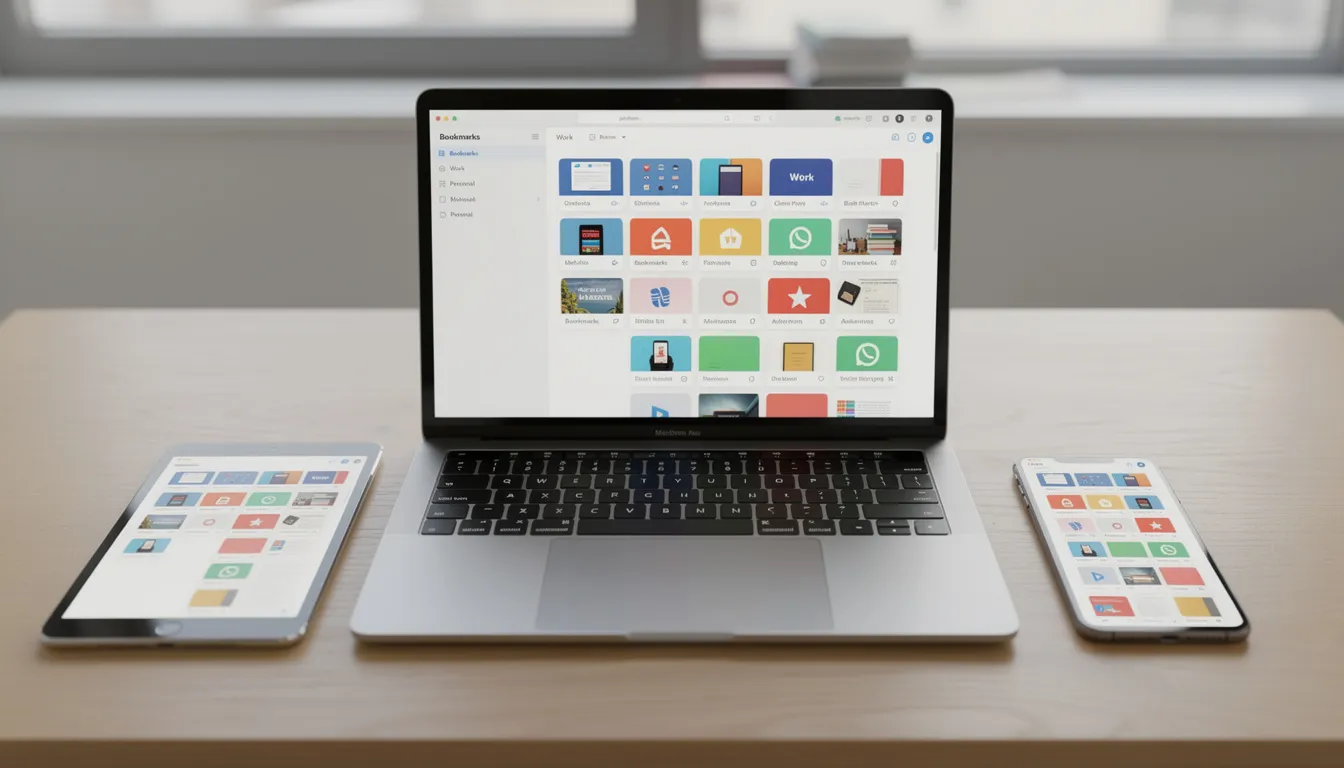
Having your bookmarks sync across all your devices is a must. Changes should appear instantly on your computer, laptop, tablet and phone. And, of course, having offline access to your saved content means you can still review your articles on a flight or during your commute without needing an internet connection.
Essential features checklist:
- Multiple tags per item
- Nested folders or collections for hierarchies
- Smart folders with auto-population rules
- A clean and intuitive interface (with dark mode if you want it)
- Keyboard shortcuts for quick access to bookmarks
- A browser extension for Chrome, Firefox, Edge, etc
- Mobile apps for iOS and Android
- Bulk operations for managing a big library
- Duplicate detection and merging
- Shared collections with role permissions
- Real-time sync across all devices
- Offline access for saved content
- Archive snapshots for permanent access
- Full-text search with filters
- Syncing across laptop, tablet, smartphone
Bookmark managers vs task managers vs note-taking apps
Bookmark managers overlap with task managers like Todoist and Asana, and note-taking apps like Notion, Evernote or Obsidian. Figuring out where each one excels helps you use your bookmarks properly and not duplicate effort across tools.
Some bookmark managers let you turn a saved link into a task. You can add due dates ("read this by Friday") and set reminders for time-sensitive resources. You can even use Kanban-style boards to organize your links.
Hybrid workflows often work best. You might save a link to your bookmark manager for quick retrieval and then paste it into a project note in Notion for deeper synthesis. Some tools let you star your bookmarks and they automatically create a task in your preferred task manager. The key is to avoid double-entry and keep your resources accessible.
How they compare:
| Tool Type | Best For | Weakness |
|---|---|---|
| Bookmark Manager | Quick capture and retrieval | Not so great for long-form research |
| Task Manager | Deadlines and project workflows | Not meant for storing resources |
| Note-Taking App | Synthesis, long-form thinking | Slower for capture and less focused on links |
Bookmark managers work best when you need to quickly capture and instantly retrieve web resources. Note apps work better when you're putting multiple sources into original writing. Task managers shine for tracking what needs doing and when. Many users end up using all three, connected by integrations.
Top bookmark manager apps to consider in 2026
The market changes every year, but some tools have consistently ranked high across 2025-2026 roundups. Each one is good for different use cases, so your choice depends on your workflow.
- Linkflare.io - A Bookmark Manager That Lets You Get the Most Out of Your Links
Linkflare.io is a modern and comprehensive bookmark manager that lets you make the most out of your links. Among its many features are the option to read things later, complex tagging, automation, and visually stunning moodboards that help you see everything in one place. - Raindrop.io - Visual Collections for the Power User
Raindrop.io offers visual collections that are perfect for the power user who wants the ability to nest collections, see previews of what's inside, and an interface that just looks great. Its polished look and feel make it perfect for designers and researchers who think visually. See our Linkflare vs. Raindrop comparison for a detailed breakdown. - Pocket - Distraction Free Reading Experience
Pocket was once a leading read-later app, but it shut down in July 2025. If you were a Pocket user, check our guide on the best alternatives. - Pinboard – The Simple, Reliable Option
Pinboard is a minimalist, text-based bookmark manager that's perfect for developers and writers who value simplicity and permanent archiving over flashy features. It's reliable and gets the job done. - Diigo – Research and Annotation Made Easy
Diigo is a research and annotation focused bookmark manager that lets you highlight key passages and do your academic work with ease. It's really popular in academic settings for collaborative research. - Toby – Tab Manager Meets Bookmark Manager
Toby is a combination of a tab manager and a bookmark manager. It helps you organize open tabs into collections - a godsend for users who are constantly juggling lots of tabs at the same time. - Start.me – Dashboard Style Bookmark Manager
Start.me is a bookmark manager that works like a dashboard, with customizable bookmark widgets. It's a great choice for users who want their favorite websites front and center all the time. - Liner – A Highlighting Specialist
Liner specialises in letting you save key paragraphs or video scenes from articles, PDFs and videos rather than the whole page. It's a really powerful tool. - Eagle – Visual Asset Management for Designers
Eagle is designed specifically for designers, helping you manage your visual assets - images, videos and bookmarks, with features like ratings, colours, and in-app previews.
Choose based on your primary use case. If you need visual organisation, go for Raindrop,io or Eagle. For reading, its Pocket. For archiving, its Pinboard. For research and annotation, its Diigo. And if you’re drowning in tabs - Toby is your friend.
You Never Lose Anything with a Bookmark Manager
One of the best things about a modern bookmark manager is that it lets you save articles for offline access . This is a game-changer whether you're traveling, commuting or just stuck in a spot with a dodgy internet connection - you can always get your saved articles.
And then there's the benefit of a clean, distraction-free reading experience. By stripping out the clutter and ads, your bookmark manager lets you just get down to the content - making it a lot easier to absorb and stay productive . With offline access and a clean interface, you can turn downtime into valuable reading time.
Whether you're in the office, at home or on the go, these features means your favourite articles and web content are always right there in front of you, helping you stay organized and on top of everything.
Sharing and Collaborating with a Bookmark Manager
These days, knowledge management is all about teamwork. A good bookmark manager makes it easy to share collections of bookmarks with your colleagues, classmates or collaborators - everyone gets access to the same resources and you can all work together smoothly.
You can even go beyond just sharing links and give tasks, notes and progress updates. This turns your bookmark manager into a really powerful tool for managing complex projects and workflows - all in one place.
With collaborative features, you can create a shared knowledge base, distribute resources and make sure important bookmarks are available to everyone who needs them. Its a really smart way to work together online.
Making it Truly Yours - Customisation and Personalisation
Your digital workflow is unique, and your bookmark manager should reflect that. Modern bookmark managers are customisable in a big way - you can create a system that suits you perfect. You can tag bookmarks in any way you like, create collections that match your projects or interests and even make the interface look how you want it to - with options like dark mode or custom icons.
And then there are the premium features like full text search, advanced tagging and offline access - just to name a few. These let you search for specific content rather than just title or URL, making it a lot easier to find what you are looking for.
By taking advantage of these customisation options, you can make a bookmark manager that fits seamlessly into your workflow - helping you find, search and access your resources in a way that just feels natural.
Syncing and Mobile Access – Your Bookmarks Wherever You Are
In today's world, work and life happen across loads of devices, and being able to access your bookmarks anywhere is a must. A modern bookmark manager lets you sync your bookmarks in real time, so whether your on your computer at home, or on the move with your phone or tablet, your bookmarks are always up to date.
Mobile apps with a clean interface make it a breeze to save new links, tag resources or browse your collections from anywhere. You can stay productive even when you're away from your desk, and that is just priceless.With features designed to make your bookmarks truly portable, you can access them from anywhere - as long as you've got an internet connection that is. Always accessible, organised and right where you need them.
How to get your first bookmark manager up and running (a step-by-step guide)
Setting up a full-featured bookmarking system for the first time can seem like a daunting task, but its actually pretty straightforward. Here's a simple step-by-step guide to get you started this week.
Step 1: Choose your tool Pick a manager that fits your needs, based on our comparison above. Don't over complicate things - you can probably switch later on if you need to, since most tools can export in standard formats.
Step 2: Get the extensions and apps downloaded Download the browser extensions for Chrome, Firefox or whatever browser you use, and install the mobile apps on your phone & tablet. This means you can save bookmarks wherever you are.
Step 3: Import any existing bookmarks Most of the major bookmark managers can import from your browser bookmarks. So, export your Chrome or Safari bookmarks as an HTML file, then import them into your new tool. This gives you a head start.
Step 4: Merge duplicates Most tools can detect duplicates for you. Have a run through this once you've imported your bookmarks to merge any duplicates and get a clean slate.
Step 5: Set up your top level folders Start simple with no more than 4-5 top level folders like: Work - professional resources, Personal - hobbies, shopping etc, Research - articles for projects, Read Later - queue for offline reading, Archive - important pages you want to keep.
Step 6: Set up any automations you need Set up integrations that fit your workflow - forward newsletter links via email, connect Slack to save shared links and set up a Zapier workflow for RSS feeds you follow.
Step 7: Establish a regular review routine Set aside 15-20 minutes each week to process your "read later" queue, tidy up your tags and drag items into their respective collections. This helps prevent clutter from building up.
Frequently asked questions about bookmark managers
Can you use bookmarks offline? Yes, most of the premium plans include offline access for saved articles. The tool downloads the content to your device for offline reading, making it available even when you're without an internet connection.
How many items can you save on the free plan? It depends on the tool you choose. Some offer unlimited bookmarks even on the free tier, while others cap at 1,000-5,000 items. Its usually the archiving and full-text search that are limited, not the raw bookmark count.
Can you export your data if you switch to a different tool? Yes, most bookmark managers support standard export formats like HTML, CSV, and JSON. This means you can always move your data to a new tool or back to browser bookmarks if you need to.
Do bookmark managers work across different browsers? Yes. Unlike browser bookmarks which are tied to Chrome or Firefox, a dedicated manager syncs your data via the cloud. So, you can install extensions in multiple browsers and your collections will stay in sync.
Just how secure are your private bookmarks? Reputable tools use end-to-end encryption for private collections and usually offer 2 factor auth. Always check the privacy policy to make sure they aren't selling your data.
Can you share collections with your team or clients? Yes, most tools support shared folders with granular permissions. You can share collections publicly via a link, invite specific collaborators with edit or view access, or create read only collections for clients.
What happens when the pages you saved are deleted or go offline? Tools with archiving features save snapshots of pages when you bookmark them. This means that if a link breaks you still have a copy.
Ready to tidy up your digital life?
Tab overload, scattered research and lost links are not inevitable. A dedicated bookmark manager reduces clutter, provides faster search through full-text indexing and archiving against disappearing pages and even enables team collaboration.
The difference is immediate. Instead of searching browser bookmarks by vague titles, you search the actual content you saved. Instead of worrying about links breaking, you have an archived copy. And instead of losing resources in chat threads, everything lives in one organised searchable system.
Here's your action plan: Choose one tool today (Raindrop or Pocket work well if you want a visual org or just want to focus on reading). Tonight, import your existing bookmarks and run duplicate detection. Then, this week, set aside 20 minutes to set up your folder and tag structure. Keep it simple: 5 collections at a start.
Better bookmark management is not about being perfect. Its about having a system that actually works - one that surfaces the right resources when you need them, and gets out of your way otherwise. In a world where content overload just gets worse, that's not just convenient. Its essential for productive work, deep research and a more chill digital existence.
Your saved links deserve better than getting lost in a cluttered browser sidebar. Give them a proper place to live.
Keep Reading
Best Bookmark Managers in 2026
Ranked reviews of the top bookmark tools including Linkflare, Raindrop.io, and more.
Linkflare vs. Raindrop.io
A detailed comparison to help you pick the right knowledge manager.
The Best Read Later Apps in 2026
Save articles and videos for distraction-free reading across all your devices.
Top 7 Pocket Alternative Apps to Use in 2026
Pocket shut down — find the best replacement for your saved reading archive.
The Best Wishlist App in 2026
Create shareable wishlists from any store, organize by occasion, and share with one link.